
To time block Todoist tasks in Google Calendar, connect the two in Todoist’s settings, give each task a date, time and duration, and it will appear as an event in a separate “Todoist” calendar. That works well for a handful of tasks. If you want to drag tasks straight onto your main calendar, see your estimates add up and know when your day will actually end, you’ll want a planner layer on top.
This guide covers both: what Todoist’s native Google Calendar sync does, where it falls short for time blocking, and a step-by-step workflow for planning a realistic day with your Todoist tasks.
What Todoist’s native Google Calendar sync does
Todoist has a built-in Calendar integration that works with Google Calendar and Outlook Calendar. According to Todoist’s help article on the Calendar integration, it does two things:
- Shows your calendar events inside Todoist. Your meetings appear next to your tasks in the Today and Upcoming views, so you can see how much free time you have.
- Syncs tasks to your calendar. Tasks with a date and time (and optionally a duration) are added as events in a dedicated calendar called “Todoist”. Changing the task’s name, date, time or duration updates the event, and changes to the event sync back to the task.
Todoist says the integration is available on all its plans, though some views, like the calendar layout, need a paid plan. It’s a solid feature, and for many people it’s all they need.
Limits of native sync for time blocking
Time blocking is more than putting tasks on a calendar. It’s deciding when each piece of work happens, protecting that time, and adjusting when the day changes. Here’s where native sync can feel thin for that job:
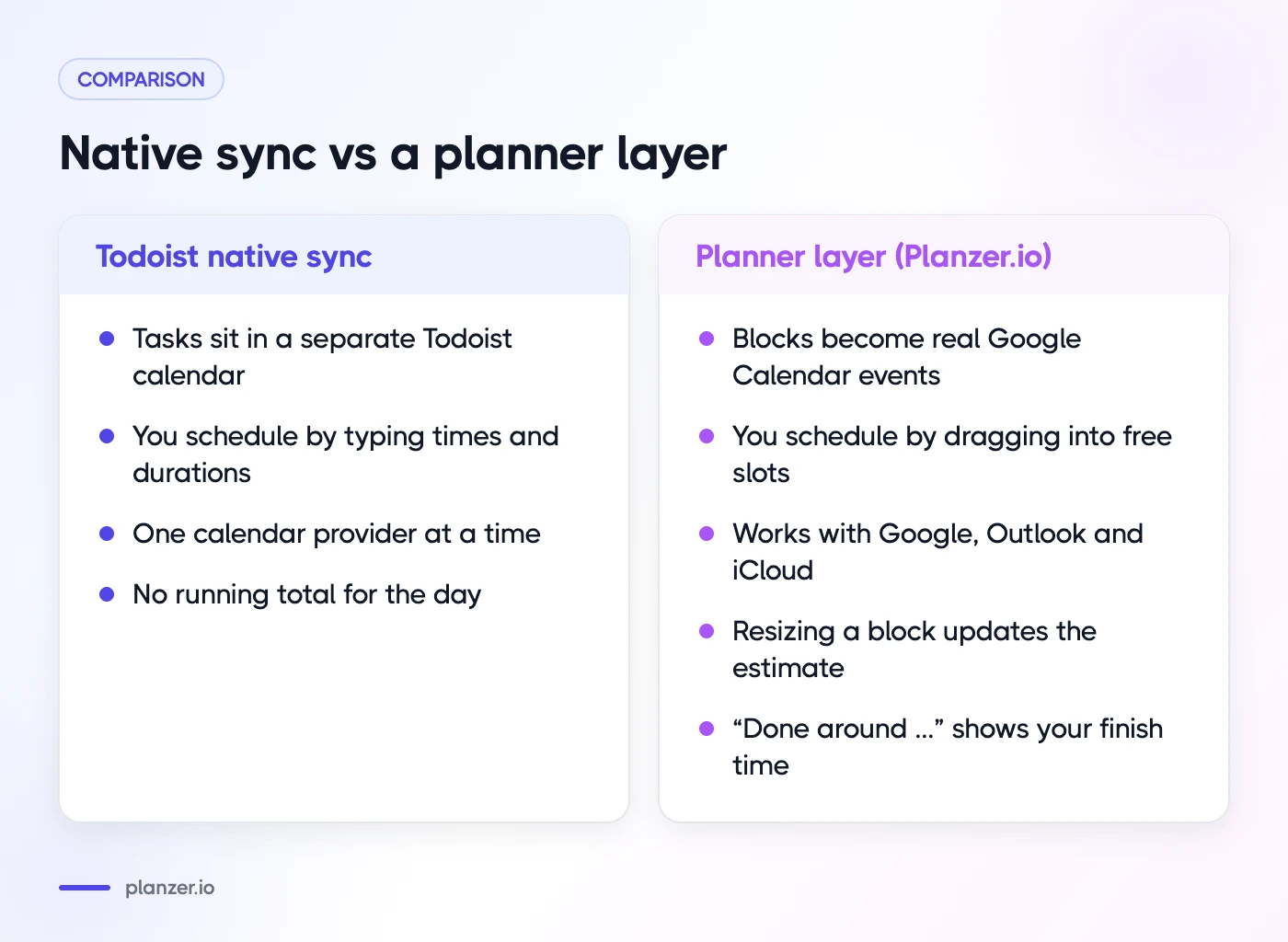
- Tasks live in a separate calendar. Todoist’s help article notes that synced tasks sit in their own Todoist calendar, so they don’t affect your primary calendar’s free/busy status. Colleagues booking time with you won’t see your focus blocks as busy.
- You schedule by typing times. You set a time and duration on each task. That works, but it’s slower than dragging tasks into gaps between meetings.
- One calendar provider at a time. You can connect Google or Outlook, but not both. If your work calendar is Outlook and your personal one is Google, you’ll need workarounds.
- No running total for the day. You can see events, but you don’t get a clear answer to “If I work through this list, when will I be done?”
- Some recurring patterns don’t sync. Todoist documents that certain recurrence types aren’t supported by the calendar side.
None of this makes Todoist a bad tool. It’s a task manager first, and it does that very well. The gap is in the daily planning step between your list and your calendar.
Step-by-step: connect Todoist and Google Calendar
If you want to start with the native integration, here’s the setup on the web:
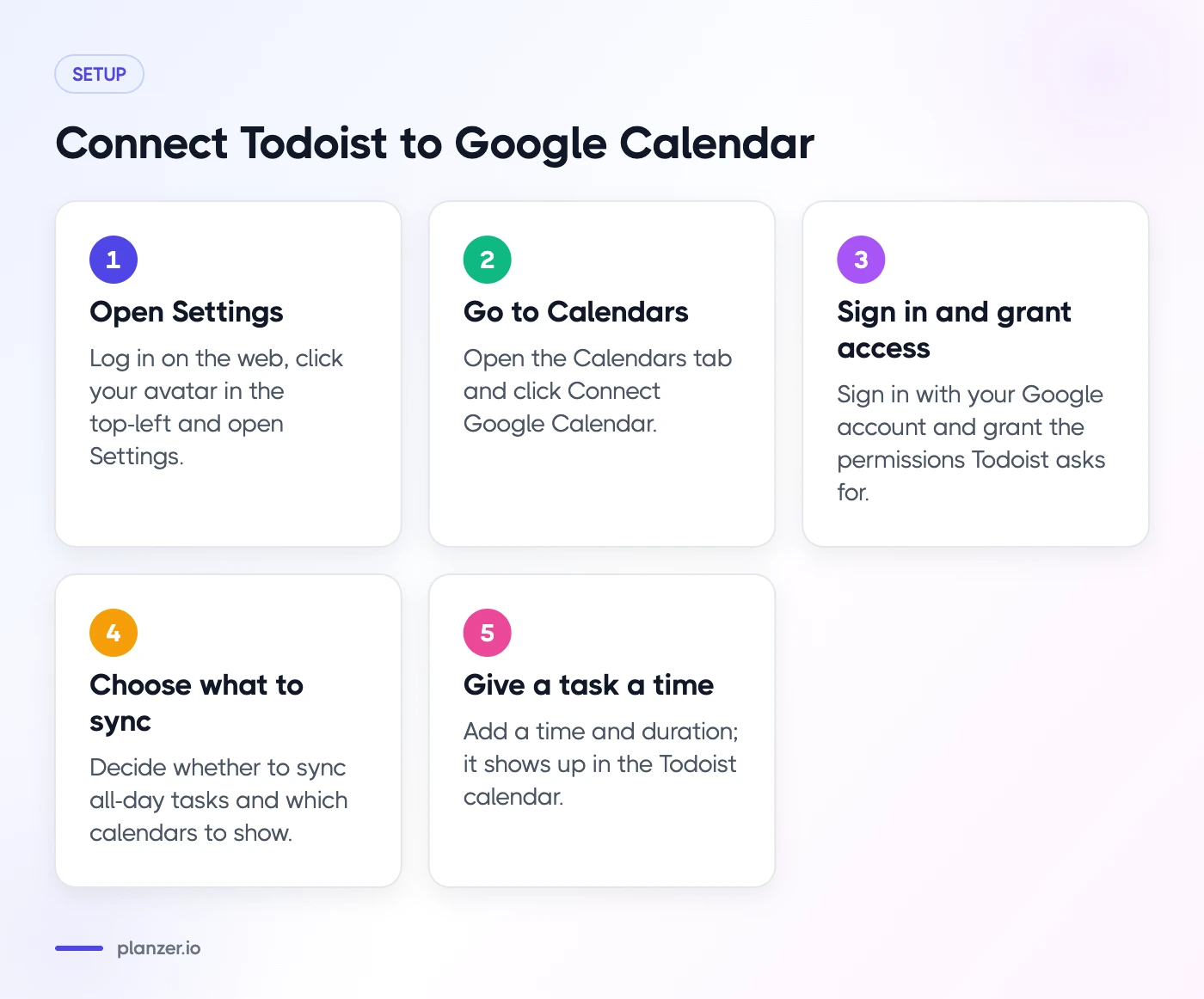
- Log in to Todoist in your browser.
- Click your avatar in the top-left and open Settings.
- Go to the Calendars tab.
- Click Connect Google Calendar and sign in with your Google account.
- Grant the permissions Todoist asks for.
- Choose whether to sync all-day tasks, and which calendars to show in Todoist.
Once connected, give a task a time and duration, such as “Draft proposal tomorrow 10am for 90 min”, and it will show up as an event in the Todoist calendar inside Google Calendar.
A tip for cleaner blocks
Only give times to tasks you’re really going to do at that time. If every task gets a time “just in case”, your calendar fills with blocks you ignore, and the whole system loses meaning. Leave the rest as dated tasks without times.
Time block Todoist tasks with drag and drop
If typing times feels slow, a planner that pulls in your Todoist tasks lets you schedule by dragging instead. This is how it works in Planzer.io’s Todoist integration:
- Connect Todoist and Google Calendar. Both are among the available integrations, and both are available on the free plan.
- Open the sidebar. Your Todoist tasks appear in a sidebar next to your day and calendar.
- Drag a task onto your calendar. Drop it into a free slot between meetings. The block becomes a real event in your Google Calendar, not just a reminder in a side calendar.
- Resize to adjust. Stretch a block from 30 to 60 minutes and the task’s estimate updates to match.
The point isn’t that drag and drop is magic. It’s that it makes the “where does this fit?” decision visual. You see the gap between your 11:00 and 14:00 meetings and drop in the work that fits.
What a time-blocked morning might look like
| Time | Block | Source |
|---|---|---|
| 09:00–09:15 | Plan the day | Planner |
| 09:15–10:45 | Write Q4 proposal | Todoist |
| 10:45–11:00 | Break | – |
| 11:00–11:30 | Team standup | Google Calendar |
| 11:30–12:00 | Reply to client feedback | Todoist |
| 12:00–12:30 | Admin batch: invoices, expenses | Todoist |
For a deeper look at the method itself, see our guide to time blocking, or our walkthrough of time blocking in Google Calendar if you mostly work from your calendar.
Add estimates and see your finish time
The most common time blocking failure is putting six hours of work into a day with three free hours. Estimates fix that, but only if you can see them add up.
Here’s a simple approach that works with or without a planner:
- Estimate every task you plan for today. Rough is fine: 15, 30, 60 or 90 minutes.
- Add up the total. Compare it with your free time after meetings.
- Cut until it fits. Move the lowest-priority tasks to tomorrow before you start, not at 17:30.
With a planner layer, you can add estimates in quick add with something like ~30m, and today’s list shows a running order: each task gets a start and end time if you work down the list, with meetings worked around. At the bottom you’ll see “Done around …”, and it turns amber if your plan runs past your shutdown time. That’s usually the moment to move a task to tomorrow.
Keep both sides in sync when plans change
Plans always change. A meeting runs over, an urgent bug lands, or a task turns out to be bigger than you thought. The goal is to replan quickly without your tools drifting apart.
With native Todoist sync
- Move the event in Google Calendar, and the task’s time updates in Todoist.
- Change the task’s date in Todoist, and the event moves.
- Complete the task in Todoist when you’re done, and it’s cleared from your list.
With a planner layer
- Drag the block to a new slot, or back to your list if it won’t happen today.
- Resize blocks as reality changes, and the estimate follows.
- Mark the task done in the planner. Completion can sync back to the source tool, so your Todoist list stays tidy.
A short end-of-day check helps too. Look at what moved, why, and what goes first tomorrow. Our post on the shutdown ritual has a simple routine for that.
How to do this in Planzer.io
If you like Todoist as your task manager but want a daily planning layer on top, here’s a simple setup:
- Connect Todoist and Google Calendar (or Outlook or iCloud) in Planzer.io.
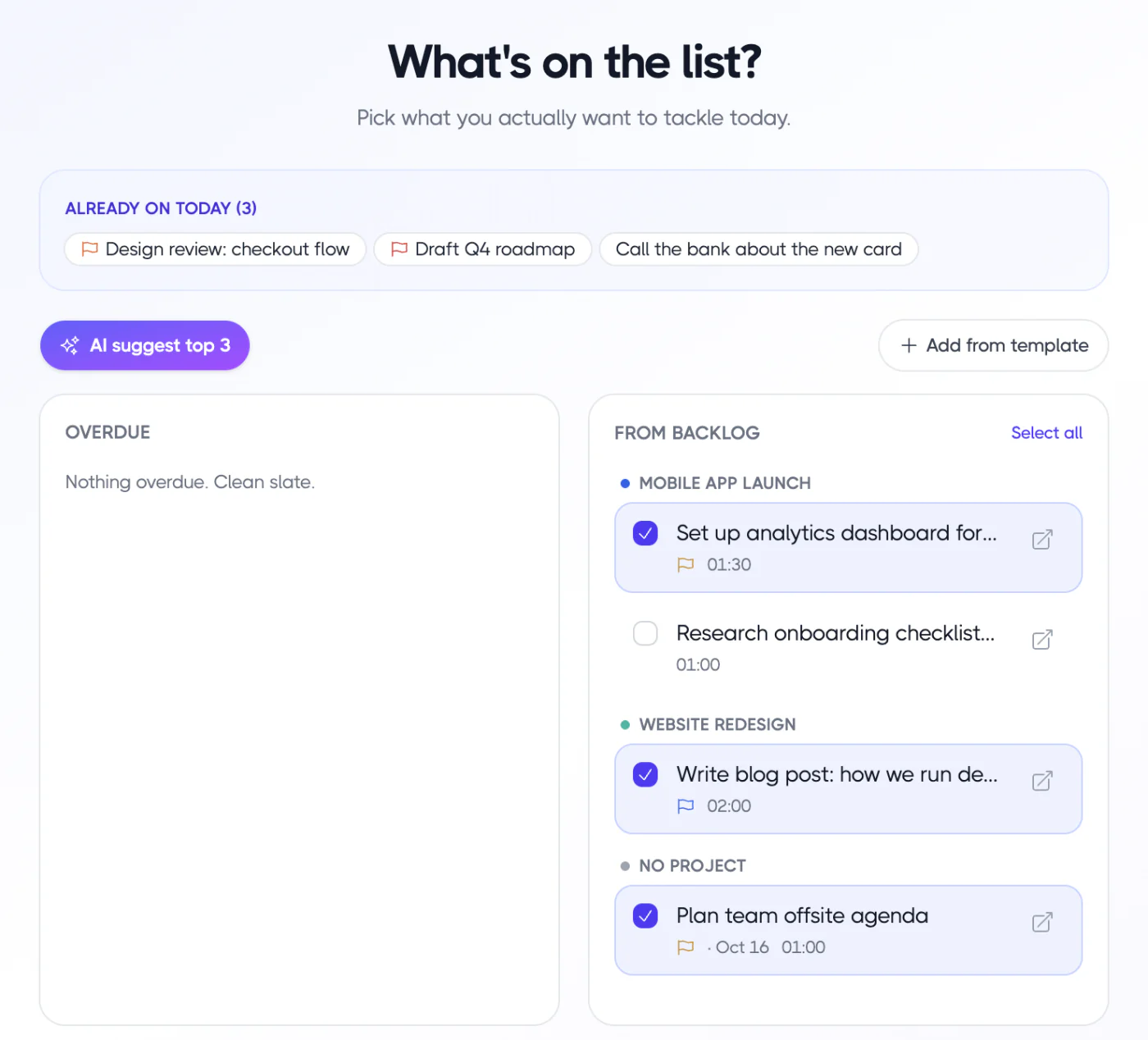
- Each morning, use “Plan my day”: pick today’s tasks from Todoist and your backlog, then choose “Plan it for me” to fit them into free slots between meetings, or keep them on your list and drag them yourself.
- Work down the running order, and check the “Done around …” time when something new comes in.
- Close the day with “Wind down the day” to note wins and why tasks slipped.
If you’re weighing whether to keep Todoist or switch, our Todoist alternative page compares the two honestly.
FAQ
Does Todoist sync two-way with Google Calendar?
Yes. Todoist’s Calendar integration syncs tasks with a date and time to a dedicated Todoist calendar, and Todoist says changes to the event, like a new time, sync back to the task. Some recurring patterns and edits to single instances of recurring events don’t sync.
Can Todoist tasks show as busy?
Not with the native integration. Synced tasks live in a separate Todoist calendar, and Todoist states they don’t affect your primary calendar’s free/busy status. If you want blocks on your main calendar, use a planner that creates real events there, or copy key blocks by hand.
How do I time block Todoist tasks in Outlook or iCloud?
Todoist’s native integration supports Outlook Calendar as well as Google, but only one provider at a time. iCloud isn’t a direct option. A planner like Planzer.io connects Todoist with Google Calendar, Outlook Calendar and iCloud Calendar, so you can drag tasks onto whichever calendar you use.
Do I need a paid Todoist plan to sync with Google Calendar?
According to Todoist, connecting Google Calendar and syncing tasks is available on every plan, including the free one. Some extra views, like the calendar layout, require a paid plan.