
To time block in Google Calendar, open Week view, click and drag across a time slot to create an event for a task, give it a clear name and a color for its type of work, and set it to show as busy. Repeat for your most important tasks, add recurring blocks for routines, and leave gaps for buffer. If you have a Google Workspace account, use Focus time events for deep work so meetings are declined automatically.
That covers the basics. This guide walks through the setup, the native method, its limits, and a faster way to turn tasks from your to-do apps into calendar blocks.
Why time block in Google Calendar
Time blocking means giving each important task its own slot on the calendar. Google Calendar is a natural place to do it:
- Your meetings are already there, so you can see real free time instead of guessing.
- Colleagues can see your blocks, which makes it less likely someone books over your deep work.
- It’s on every device, with reminders and notifications built in.
- It’s free with a Google account.
The trade-off is that Google Calendar is a calendar, not a task manager. It doesn’t know how long your tasks should take or what’s left on your list. We’ll come back to that.
Set up your calendar: colors, working hours, Focus time
Ten minutes of setup makes daily time blocking much faster.
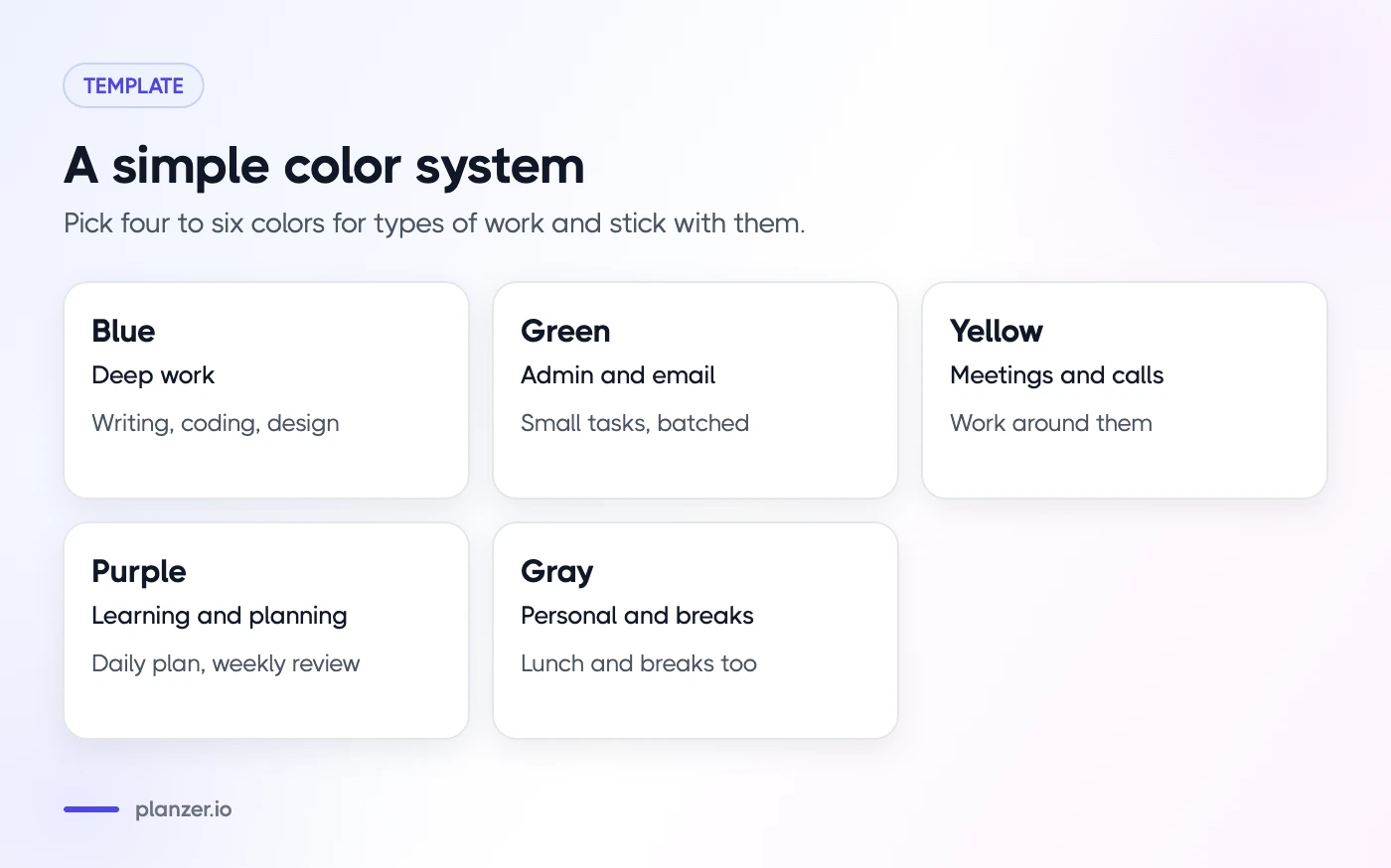
1. Choose a color system
Pick four to six colors for types of work and stick with them. For example:
| Color | Type of work |
|---|---|
| Blue | Deep work (writing, coding, design) |
| Green | Admin and email |
| Yellow | Meetings and calls |
| Purple | Learning and planning |
| Gray | Personal and breaks |
To change an event’s color, right-click it in the calendar (or open it) and pick a color. Over time, a glance at your week tells you whether deep work is getting enough space.
2. Set your default event length
In Settings, under event settings, you can change the default duration for new events. If most of your tasks are 30 or 60 minutes, set that as the default so blocks need less resizing.
3. Set working hours
If you use a work or school account, you can set working hours in Settings. People who try to invite you outside those hours see a warning. It’s also a useful reminder for you: if your blocks spill past your working hours, the day is too full.
4. Learn Focus time
Focus time is a special event type for some Google Workspace work and school accounts. According to Google’s Focus time help page, a Focus time event can decline new and existing meetings by default, and can mute Google Chat notifications. You create it from Day or Week view on a computer. If you don’t see the option, your account type doesn’t include it, and a normal event marked busy is the next best thing.
5. Create a “Time blocks” calendar (optional)
Some people create a separate calendar just for blocks. That lets you hide or show them with one click and keeps your main calendar tidy. The downside is one more calendar to manage, so skip this if you prefer simple.
How to create time blocks natively
Here’s the daily routine once setup is done:
- Open Week or Day view and look at today’s (or tomorrow’s) meetings.
- Pick your top one to three tasks for the day.
- Click and drag across the slot where you’ll do the first task. Give it a specific title, such as “Draft Q4 report intro”, not just “Work”.
- Set it to busy so others see you as unavailable.
- Add a color for the type of work.
- Paste a link or notes into the description: the doc, ticket or checklist you need. It saves hunting when the block starts.
- Repeat for the other important tasks, then group small tasks into one admin block.
- Leave gaps between blocks and around meetings.
Naming tips
- Start with a verb: “Write”, “Review”, “Plan”, “Call”.
- Keep it short enough to read in a small block.
- If others can see your calendar details, use neutral titles for anything private.
Recurring blocks for routines
Some blocks should happen every day or every week. Set them up once as recurring events:
- Daily planning: 10 minutes at the start of the day (our daily planning ritual shows what to do in it)
- Email and admin: one or two blocks a day
- Deep work: for example 09:00–11:00 on weekdays
- Weekly review: Friday afternoon
- Lunch and breaks: yes, block them too
To make a block repeat, open the event and change “Does not repeat” to the pattern you need. If you prefer a starting layout, our time blocking template gives you a ready-made structure to copy.
Where native time blocking falls short
Google Calendar is great at showing time. It’s weaker at the task side of time blocking:
- Tasks live elsewhere. If your work is in Todoist, Asana, Jira or Notion, you copy titles over by hand, and they drift out of sync.
- No estimates. A block’s length is your estimate, but nothing compares it with how long the task actually took.
- No running list. Unfinished blocks stay where they are. You move them manually to tomorrow.
- No finish-time check. It won’t warn you that today’s tasks add up to more hours than you have.
- Focus time depends on your plan. Personal Gmail accounts don’t get it.
For a light setup with a handful of tasks a day, none of this matters much. If you plan most of your day this way, the manual copying gets old quickly.
Time block tasks from your to-do apps automatically
The faster approach is to use a planner that connects to both your task tools and Google Calendar. Instead of retyping tasks, you see them in a sidebar and drag them onto the calendar. The block becomes a real Google Calendar event, so colleagues still see you as busy.
When you’re choosing a tool for this, check:
- Which task tools it connects to (Todoist, Asana, Jira, ClickUp, Linear and so on)
- Whether calendar blocks stay linked to the task, so changes in one place show up in the other
- Whether it tracks estimates and actual time
- Whether it shows when your day will end
We compare several options in our roundup of the best time blocking apps.
Example: a time-blocked day in Google Calendar
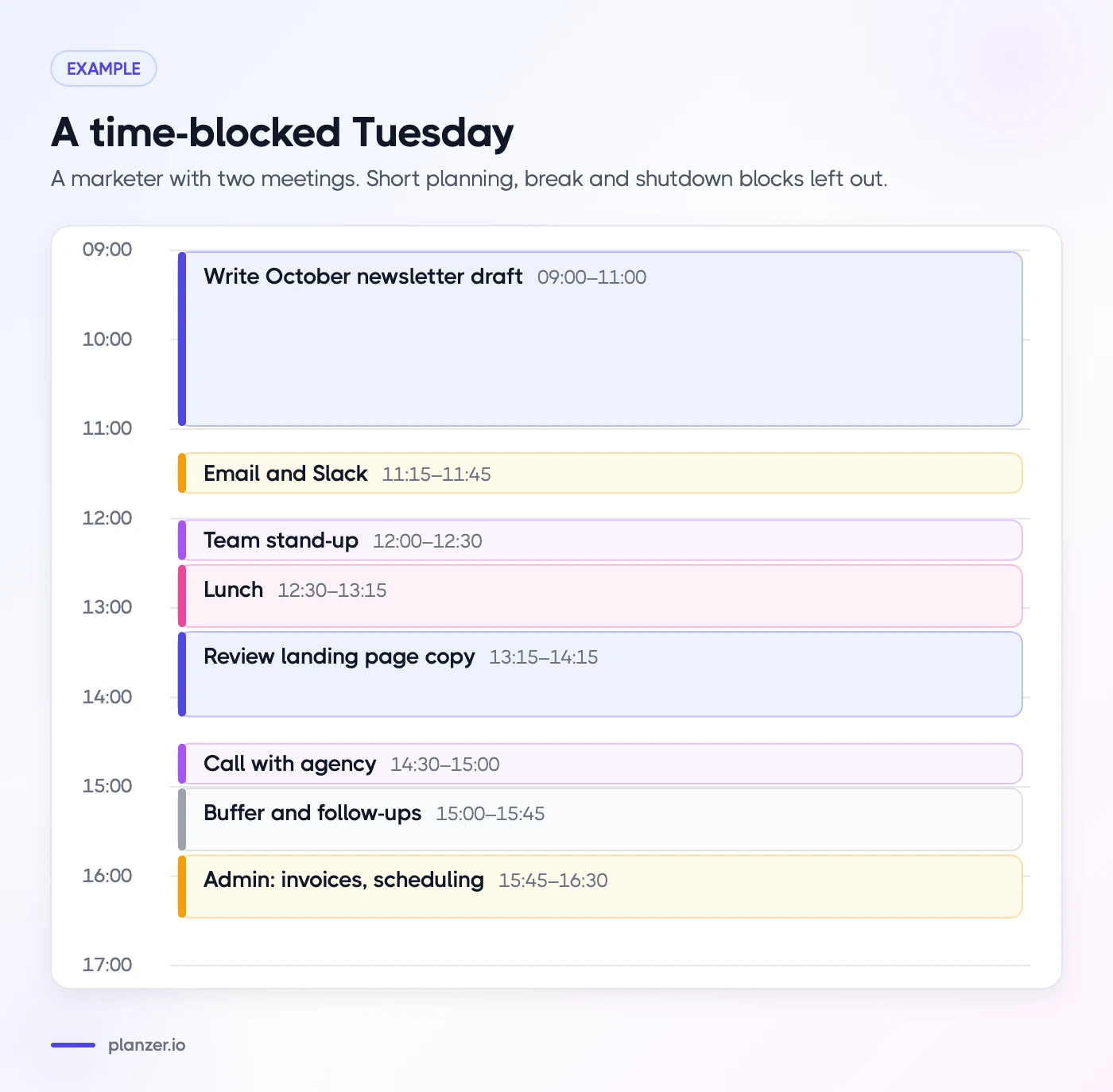
Here’s a realistic Tuesday for a marketer with two meetings:
| Time | Block | Color |
|---|---|---|
| 08:45–08:55 | Plan the day | Purple |
| 09:00–11:00 | Write October newsletter draft | Blue |
| 11:00–11:15 | Break | Gray |
| 11:15–11:45 | Email and Slack | Green |
| 12:00–12:30 | Team stand-up | Yellow |
| 12:30–13:15 | Lunch | Gray |
| 13:15–14:15 | Review landing page copy | Blue |
| 14:30–15:00 | Call with agency | Yellow |
| 15:00–15:45 | Buffer and follow-ups | (none) |
| 15:45–16:30 | Admin: invoices, scheduling | Green |
| 16:30–16:45 | Shutdown: review and plan tomorrow | Purple |
Notice the deep work happens in the morning, small tasks are batched, and there’s a buffer after the afternoon call. If the newsletter runs long, the buffer absorbs it.
Tips to make your blocks stick
Creating blocks is the easy part. Keeping them is harder. A few habits help:
- Plan blocks the day before or first thing. Blocks created mid-morning tend to get squeezed by whatever is already happening.
- Treat a block like a meeting with yourself. If someone asks for that slot, offer another time unless it’s genuinely urgent.
- Move, don’t delete. If a block gets bumped, drag it to a new slot straight away so the task doesn’t disappear.
- Close other tabs when a block starts. The block only protects your time if you use it for the task on the label.
- Review at the end of the day. Which blocks held, and which got eaten? Adjust tomorrow’s plan, not just today’s.
- Keep some days lighter. Not every day needs to be fully blocked. Days packed with meetings may only have room for one focused block, and that’s fine.
How to do this in Planzer.io
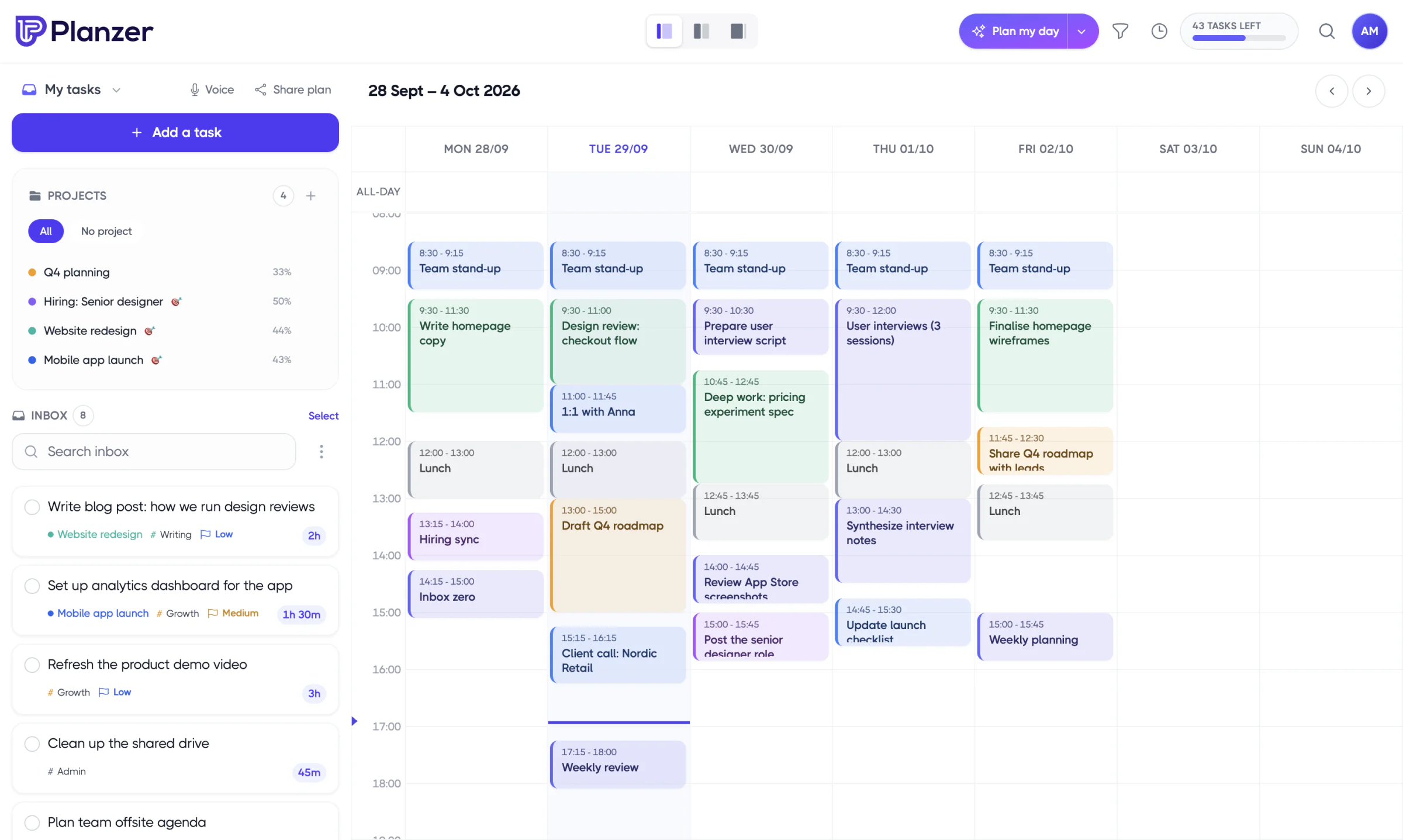
Connect Google Calendar and your task tools (our Google Calendar integration page explains how it works), and your tasks from Todoist, Asana, Jira and other tools appear in a sidebar. Drag any task onto the calendar to create a block. It’s a real Google Calendar event, and resizing it updates the task’s estimate. Planzer.io also shows a running order with a “Done around …” finish time, so you know if the day fits. See the time blocking feature page for details.
FAQ
Does Google Calendar have a time blocking feature?
Not a dedicated one. You time block by creating events for tasks. Some Workspace accounts also get Focus time, which can decline meetings and mute Chat during the block.
How do I show time blocks as busy?
Open the event and set availability to “Busy”. Events are usually busy by default, but check, because blocks marked “Free” won’t stop people booking over them.
Can I turn tasks into calendar events automatically?
Google Tasks can show on your calendar, but tasks from other apps can’t be dragged in natively. A planner that connects your task tools to Google Calendar lets you drag tasks onto the calendar as real events.