Auto-scheduling means a tool looks at your tasks and your calendar, then places each task into a free slot for you. It’s great for getting from “long list” to “realistic day” in seconds, and for replanning when meetings move. It’s less great when it reshuffles your day constantly or makes choices you wouldn’t. The approach that works for most people is hybrid: let the tool draft the plan, then review and adjust it yourself.
This guide explains how auto scheduling tasks works, its pros and cons, and how to set it up so it helps rather than takes over.
What auto-scheduling is
Auto-scheduling (also called smart scheduling or automatic time blocking) is when software decides when your tasks happen. You give it the inputs:
- Your tasks, ideally with time estimates
- Priorities and due dates
- Your calendar, with meetings and other events
- Your working hours
The tool then places tasks into the gaps between meetings, usually as blocks on your calendar. Some tools do this once when you ask. Others keep doing it all day, moving tasks around every time something changes.
It’s the automated version of time blocking. Instead of dragging each task into a slot yourself, the software does the first pass.
How auto-scheduling decides what goes where
The details differ by tool, but most auto-schedulers work through the same basic steps:
- Find free time. Look at your calendar within your working hours and find the open slots.
- Sort tasks. Rank tasks by priority, due date or both. Urgent and important work goes first.
- Fit tasks into slots. Place each task where its estimate fits. A 90-minute task needs a 90-minute gap, or gets split across several.
- Handle what doesn’t fit. Push the rest to another day, or flag that you’re overbooked.
- Re-run when things change. Some tools redo this automatically when a meeting is added or a task runs over.
More advanced tools add rules on top: focus time preferences, buffers between meetings, task dependencies, or habits like “lunch somewhere between 12:00 and 13:30”.
Why estimates matter so much
An auto-scheduler is only as good as your estimates. If you say a task takes 30 minutes and it really takes two hours, the schedule will be wrong no matter how clever the software is. Rough estimates are fine, but they need to be honest. Tracking estimated vs actual time for a couple of weeks is the fastest way to improve them.
Pros: speed, replanning and less decision fatigue
Speed
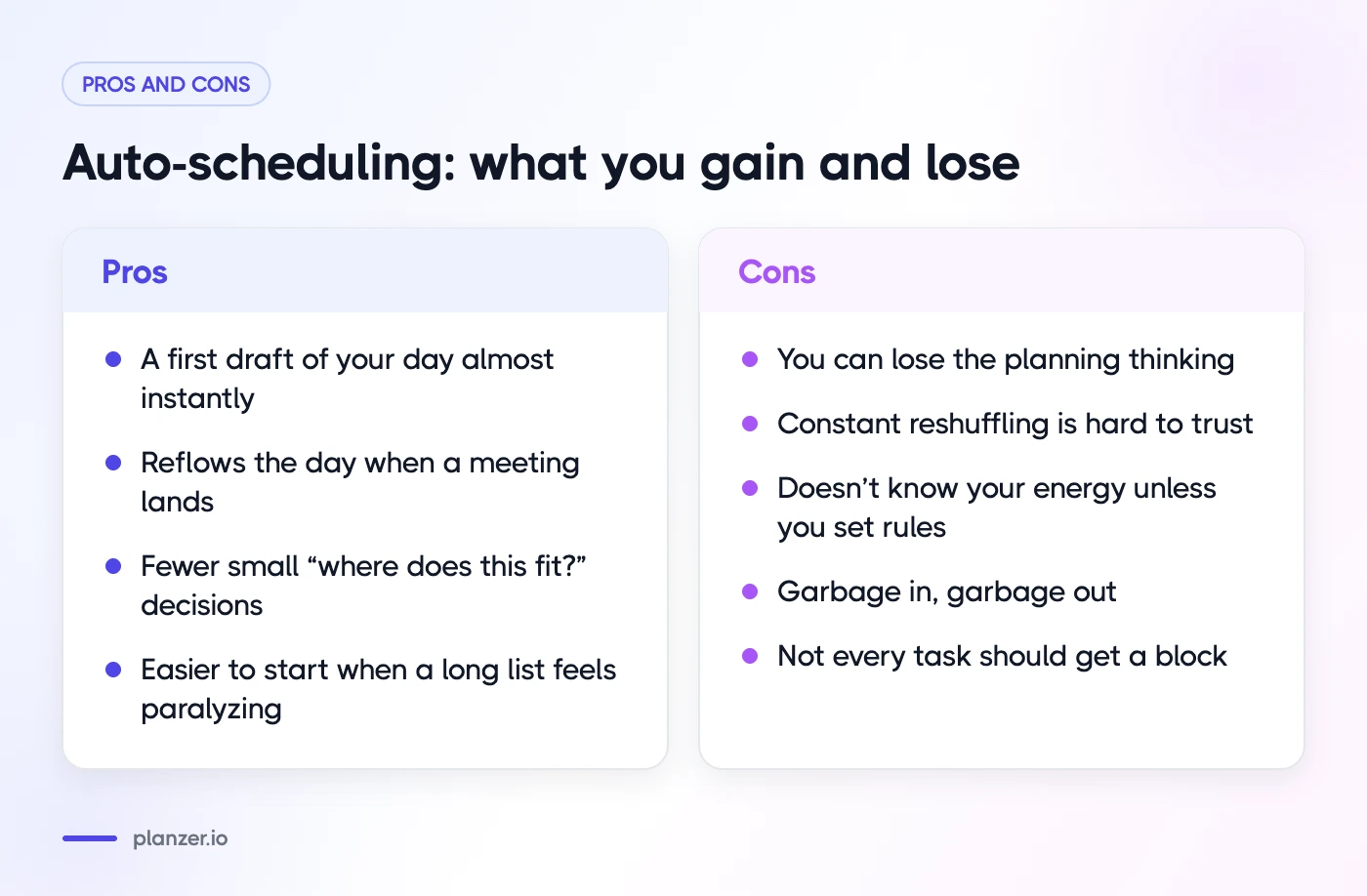
Turning a long list into a scheduled day by hand takes a while: dragging, second-guessing, dragging again. Auto-scheduling gives you a first draft almost instantly.
Replanning after a meeting lands
This is where auto-scheduling really helps. When a two-hour meeting appears on your calendar at 10:00, re-placing everything by hand is tedious. A tool can reflow the rest of the day in one step.
Fewer small decisions
Planning involves lots of small choices: this task here or there, before or after lunch. Some people find those choices draining, an idea often discussed as decision fatigue, though the research on it is debated. Either way, handing off the “where does this fit?” question frees attention for the work itself.
Helpful for overwhelm and ADHD
When a long list feels paralyzing, seeing it turned into a concrete sequence can make it easier to start. For many people with ADHD, having the first draft made for them removes a big hurdle. If that’s you, our guide to time blocking with ADHD has more ideas.
Cons: lost control and constant reshuffling
You lose the planning thinking
Planning isn’t just logistics. Deciding what matters today is valuable thinking in itself. If a tool makes all those choices, you can end up busy with the wrong things without noticing.
Constant reshuffling
Tools that re-plan continuously can move tasks around many times a day. Some people love that. Others find it hard to trust a plan that keeps changing, or feel anxious watching tasks get pushed to tomorrow.
It doesn’t know your energy
Most auto-schedulers don’t know that you write best in the morning, or that you’re useless after a long meeting. Unless you set rules for it, a demanding task may land in a slot where you can’t do it well.
Garbage in, garbage out
Missing estimates, vague tasks and outdated priorities all lead to a schedule that looks neat but doesn’t work.
Not every task should be scheduled
Quick replies, small admin and “if I have time” tasks often work better as a list than as calendar blocks. Scheduling everything can clutter your calendar.
Hybrid approach: auto-plan, then review
For most people, the best setup is somewhere in the middle: let the tool draft, then you decide.
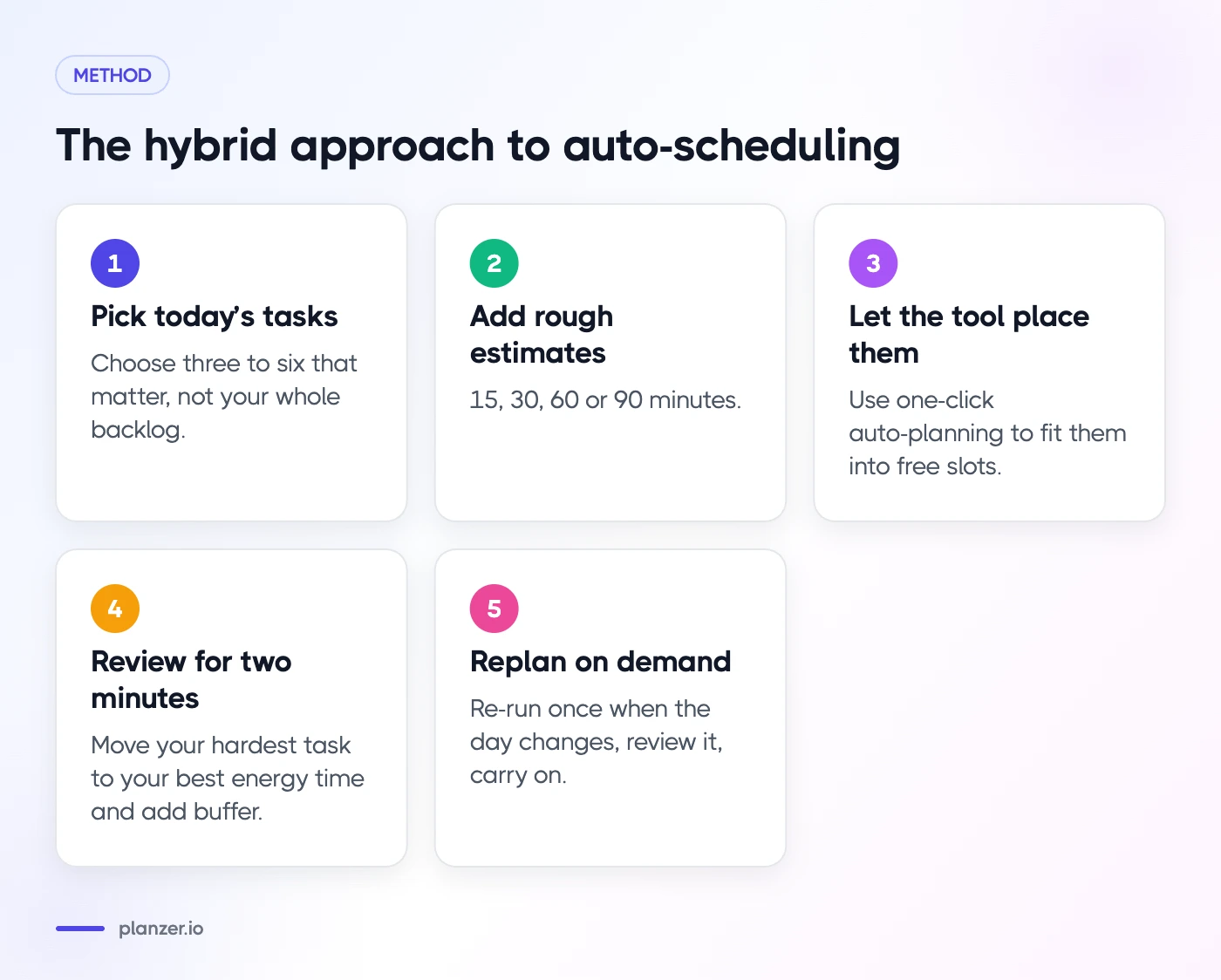
- Pick today’s tasks yourself. Choose what matters, ideally three to six tasks, not your whole backlog.
- Add rough estimates. 15, 30, 60 or 90 minutes.
- Let the tool place them. Use one-click auto-planning to fit them into free slots.
- Review for two minutes. Move your hardest task to your best energy time. Add a buffer after long meetings. Pull anything that doesn’t really need a block back onto your list.
- Replan on demand, not constantly. When the day changes, re-run the plan once, review it, and carry on.
This keeps the speed of automation while you stay in charge of priorities. It also means your plan only changes when you choose to change it.
Mini-template: a 5-minute hybrid morning
1. Open today’s calendar and task list.
2. Pick 3–6 tasks. Add estimates.
3. Auto-plan into free slots.
4. Move the most important task to your best focus time.
5. Check your finish time. Cut if it’s past your shutdown time.
Setting up auto-scheduling well
A few settings make a big difference, whatever tool you use:
- Set realistic working hours. If you never work after 17:00, don’t let the tool schedule there.
- Protect focus time. Block a recurring focus slot so meetings don’t claim it, and let tasks fill it.
- Add buffers. 10–15 minutes after meetings gives you room to breathe and catch up.
- Keep the task list short. Auto-schedule today’s chosen tasks, not 80 backlog items.
- Review estimates weekly. Compare estimated and actual time, and adjust your defaults.
- Decide how often to replan. Once in the morning and once after lunch is enough for most people.
How to do this in Planzer.io
Planzer.io takes the hybrid approach. In the guided “Plan my day” ritual, you pick your tasks first (with overdue and backlog tasks shown, and “AI suggest top 3” on Pro), and then choose how to schedule them:
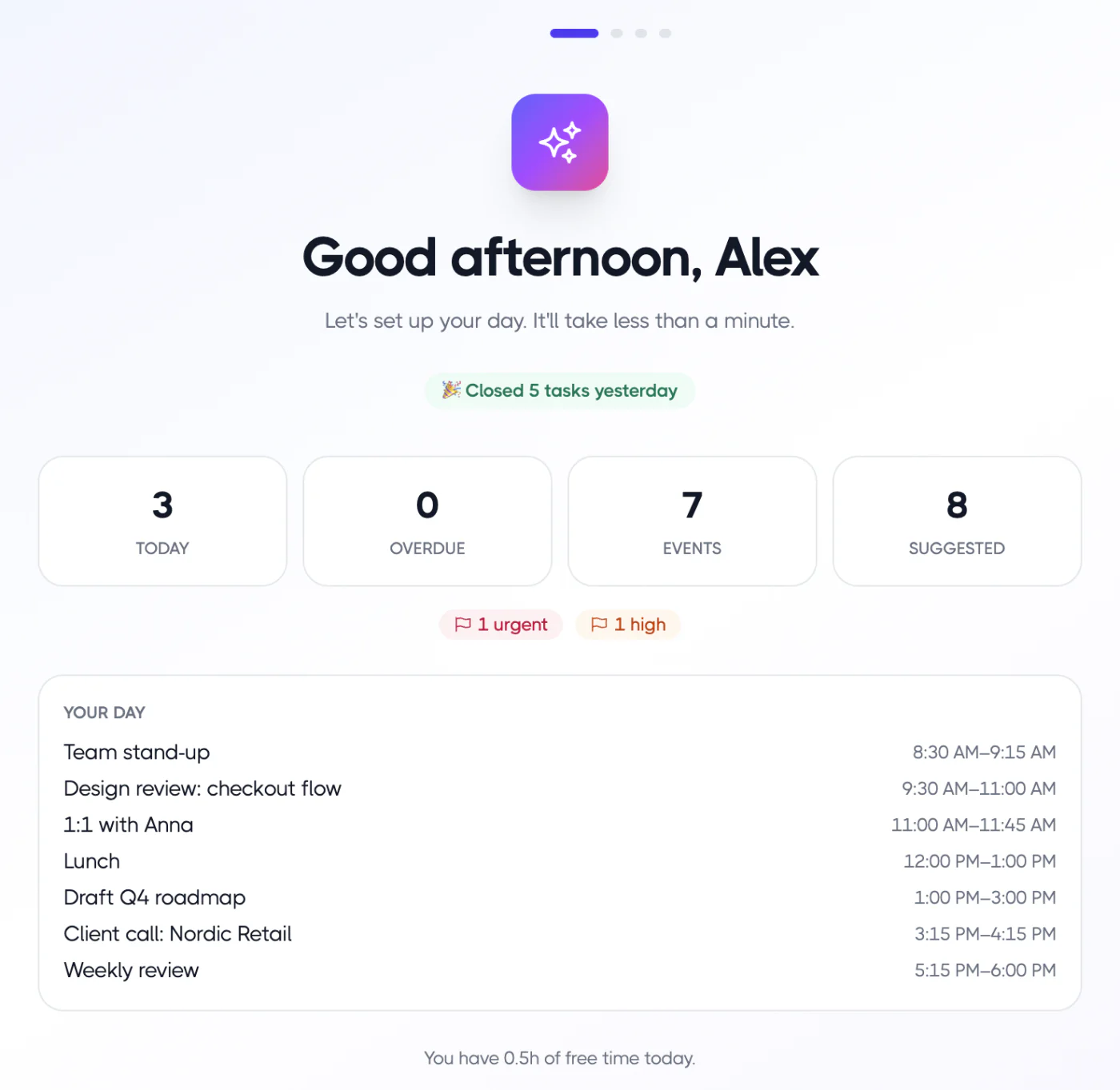
- “Plan it for me” fits your tasks into the free slots between meetings within 09:00–18:00, as real events on Google Calendar, Outlook Calendar or iCloud Calendar.
- “Just keep on my list” if you’d rather work from an ordered list today.
Either way, the plan is yours to edit. Drag blocks around, resize them to update estimates, and check today’s running order and “Done around …” time to see if it all fits. More on how this works on the AI planning page and the ADHD planner page.
If you want a tool that re-plans your whole day continuously, Motion is built around that idea. Our Motion alternative page compares the two approaches fairly. For a wider look at the market, see our roundup of the best AI planner apps.
FAQ
Is auto-scheduling good for ADHD?
It can be very helpful, especially for getting started and for replanning after the day slips. Many people with ADHD find a ready-made plan easier to follow than a blank list. The risk is constant reshuffling, which can feel unsettling, so a tool that plans on demand and lets you adjust is often a better fit.
Does auto-scheduling work with Outlook?
Many tools support Outlook Calendar. Motion says it works with Google, Outlook and iCloud calendars, Reclaim works with Google and Outlook calendars, and Planzer.io’s “Plan it for me” works with Google Calendar, Outlook Calendar and iCloud Calendar. Check each tool’s current integrations before you commit.
What’s the difference between Motion and Reclaim?
Motion is an all-in-one project and task manager that continuously auto-schedules your tasks and replans your day when things change. Reclaim works on top of your Google or Outlook calendar, scheduling tasks, habits and focus time around your meetings, and connects to task tools like Todoist, Asana and Jira. Both auto-schedule; they differ in how much of your workflow they replace.
Can I auto-schedule tasks in Google Calendar for free?
Some tools offer free plans with scheduling features, though limits vary. Reclaim has a free plan with limits, and Planzer.io’s free plan covers up to 100 tasks and all integrations, including Google Calendar. Check each tool’s pricing page for what’s included today.