


To time block in Outlook, create a calendar event without inviting anyone, set it to show as Busy, mark it private if needed, and give it a clear name like “Focus: Q4 budget”. Do that for your most important work each day, and Outlook becomes a plan instead of just a list of meetings.
This guide shows how to do it in Outlook on desktop and on the web, how to set up recurring and private blocks, and how to turn emails, Jira issues and Asana tasks into time blocks without copying everything by hand.
Why time block in Outlook
If you work in Microsoft 365, your Outlook calendar is where everyone looks to see when you’re free. That makes it the best place to protect time for real work. When your calendar is empty, colleagues assume you’re available, and your day fills with meetings by default.
Time blocking in Outlook calendar does three things:
- It protects focus time. A block that shows as Busy is less likely to get booked over.
- It makes your plan realistic. When tasks sit next to meetings, you see quickly whether today’s list actually fits.
- It reduces decisions. When the block starts, you already know what to work on.
If you’re new to the method, our guide to time blocking covers the basics. Below, we’ll focus on how to make it work in Outlook.
Block time in Outlook desktop
Outlook for Windows and Mac now comes in a classic version and a new version, and some labels differ slightly. The steps are the same in both:
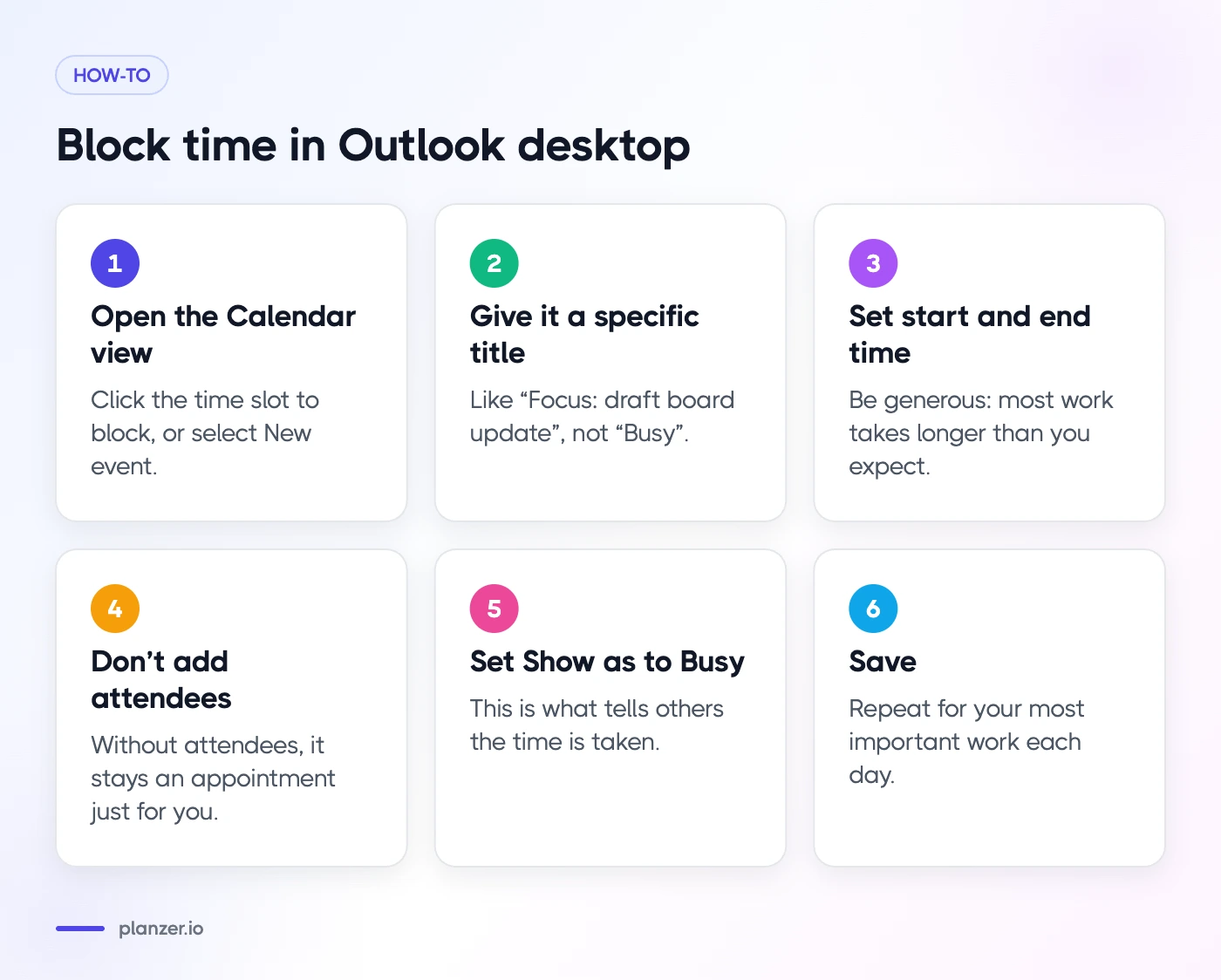
- Open the Calendar view.
- Click the time slot you want to block, or select New event (called New Appointment in classic Outlook).
- Give it a specific title, like “Focus: draft board update” rather than “Busy”.
- Set the start and end time. Be generous: most work takes longer than you expect.
- Don’t add attendees. Without attendees, it stays an appointment just for you.
- Set Show as to Busy. This is what tells others the time is taken.
- Save.
Name blocks so they’re useful
A good block name answers “What exactly will I do?” Compare these:
- “Work on project” vs “Write sections 2 and 3 of the project brief”
- “Email” vs “Reply to client emails and clear the inbox to 10”
- “Admin” vs “Expenses, timesheet, book travel”
Specific names make it easier to start, and easier to tell at the end of the day whether the block did its job.
Block time in Outlook on the web
Outlook on the web works almost the same way:
- Go to outlook.office.com and open Calendar.
- Select New event, or click and drag across a slot in the calendar grid.
- Add a title and time, and leave the invite field empty.
- Use the Busy dropdown to choose how the time shows: Free, Working elsewhere, Tentative, Busy or Away.
- Save.
You can also drag the edges of an existing event to change its length, or drag the whole event to move it. That makes replanning quick when a meeting lands on top of your block.
Recurring and private blocks
Recurring blocks
Some time should be protected every week: a daily focus block, a weekly planning session, a Friday afternoon admin slot. To make a block repeat, open it and choose Repeat (or Recurrence in classic Outlook), then pick daily, weekly or a custom pattern.
Good candidates for recurring blocks:
- Morning focus: 09:00–11:00, Monday to Thursday
- Daily planning: 15 minutes at the start of the day
- Email batches: 11:30 and 16:00
- Weekly review: Friday 15:30–16:00
Keep recurring blocks light. If every hour of your week is pre-booked, there’s no room for the work that actually comes up.
Private blocks
If your calendar is shared, others may see the titles of your events. To hide the details, mark the block as Private (look for the lock icon or a “Private” option in the event’s settings). Others will still see the time as busy, but not what you’re doing. That’s useful for personal appointments or sensitive projects.
What about Outlook focus time?
Microsoft has its own option for this. Viva Insights, which is available in Outlook and Teams for many Microsoft 365 users, can book focus time for you. Its focus plan schedules up to four hours a day of focus blocks and can mute Teams chats during them.
It’s a helpful starting point, with a few limits for time blocking:
- It books generic focus time, not time for specific tasks.
- Availability depends on your organization’s Microsoft 365 setup.
- It doesn’t pull in tasks from tools like Jira or Asana.
If generic focus time is all you need, try it. If you want each block tied to a real task, read on.
Turn emails and tasks into time blocks
For many Outlook users, a lot of the day’s work starts as an email. A simple workflow keeps your inbox from becoming your to-do list:
- Triage your inbox twice a day, not continuously.
- For each email that needs real work, turn it into a task with a short, actionable title, like “Send revised quote to Anna”.
- Estimate it: 15, 30 or 60 minutes.
- Drop it into a block on your calendar today or this week.
- Archive the email. The task now holds the work, so the email doesn’t need to sit in your inbox.
In classic Outlook you can drag an email onto the calendar to create an appointment with the email’s content. A planner layer makes this faster. With Planzer.io’s Outlook Mail integration, emails appear in a sidebar and you can drag them into your day or onto your calendar as tasks. If your team works partly from Google, our guide to time blocking in Google Calendar covers the same workflow there.
Time blocking Jira and Asana work in Outlook
Most work doesn’t live in Outlook. It lives in Jira, Asana or another project tool, while your meetings live in Outlook. Time blocking means bringing the two together.
The manual way
Open Jira or Asana, pick the issues for today, and create an Outlook event for each with the issue name and a link. It works, but it’s copy-paste every morning, and the two sides drift apart as soon as something changes.
With a planner layer
A planner that connects both sides lets you drag work straight onto your calendar:
- With Jira and Outlook Calendar, your assigned Jira issues show up in a sidebar. Drag one onto your Outlook calendar and it becomes a real event. When you finish, completion can sync back, for example closing the Jira issue.
- With Asana and Outlook Calendar, your Asana tasks work the same way, so your project plan and your calendar tell the same story.
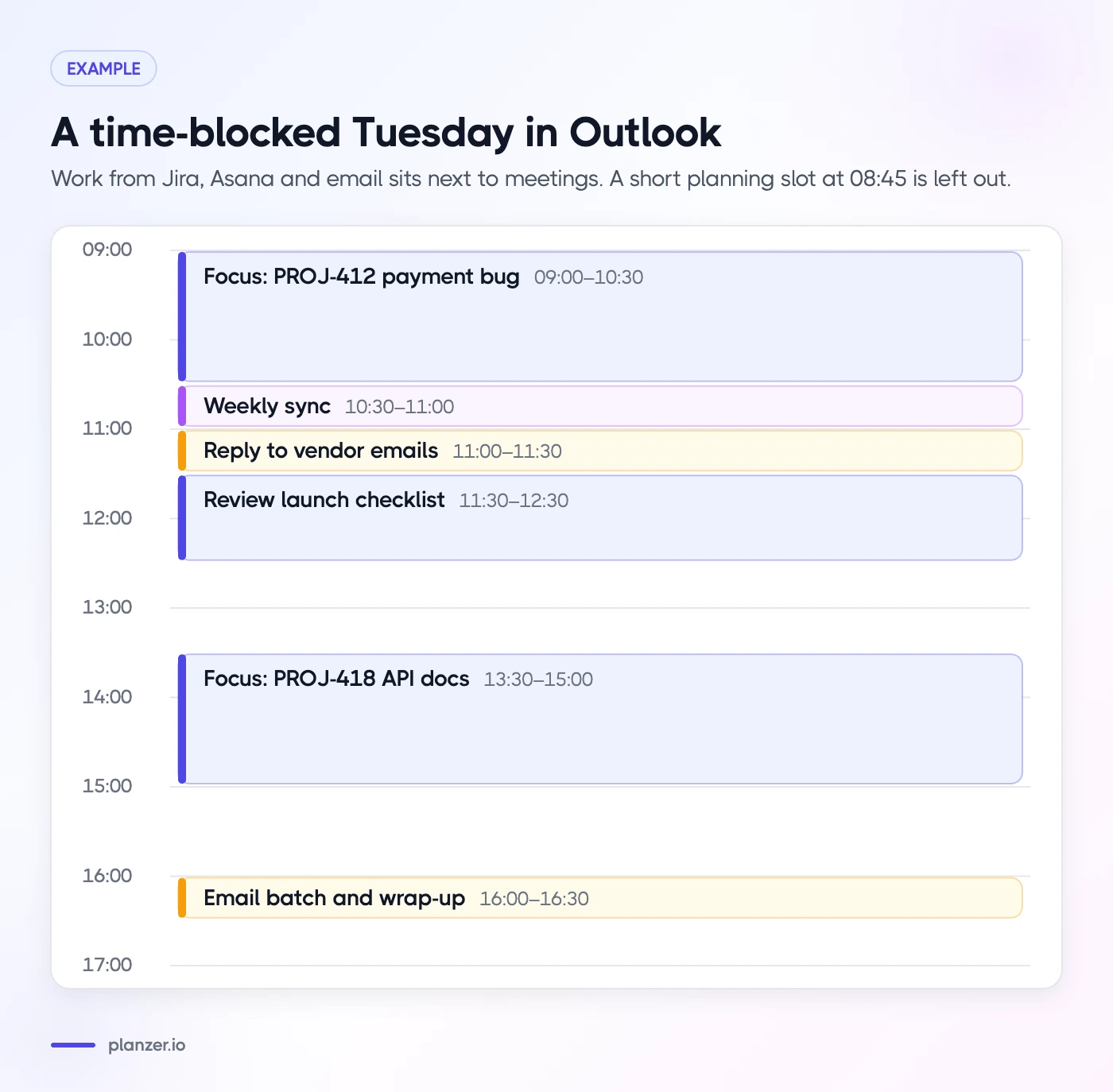
Example: a time-blocked Tuesday in Outlook
| Time | Block | Source |
|---|---|---|
| 08:45–09:00 | Plan the day | Planner |
| 09:00–10:30 | Focus: PROJ-412 payment bug | Jira |
| 10:30–11:00 | Weekly sync | Outlook meeting |
| 11:00–11:30 | Reply to vendor emails | Outlook Mail |
| 11:30–12:30 | Review launch checklist | Asana |
| 13:30–15:00 | Focus: PROJ-418 API docs | Jira |
| 16:00–16:30 | Email batch and wrap-up | Outlook Mail |
Notice the gaps. Leaving 15–30 minutes of slack around meetings is what keeps a time-blocked day from collapsing at the first overrun.
How to do this in Planzer.io
If you want to time block Outlook without copying tasks by hand, here’s a simple setup in Planzer.io:
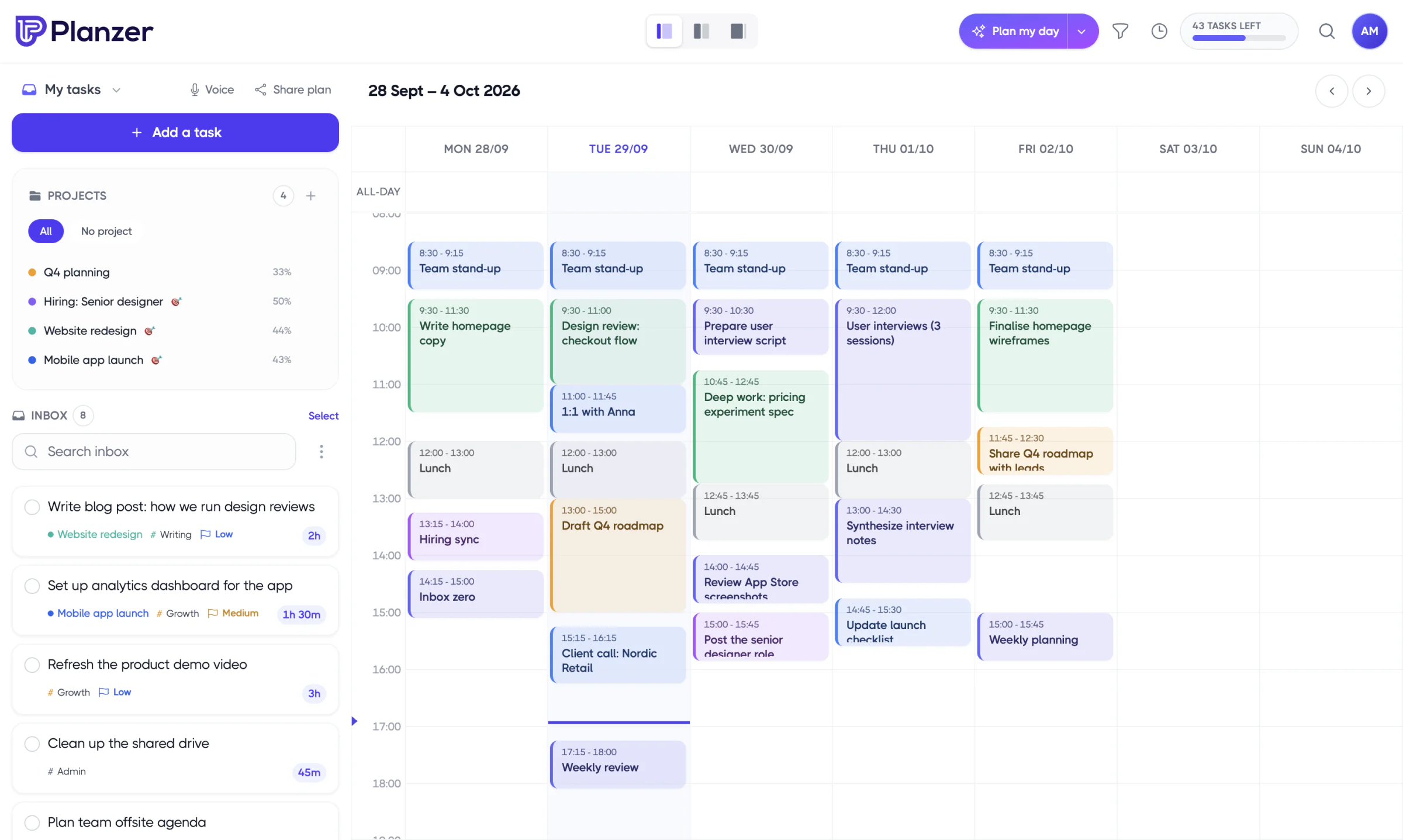
- Connect Outlook Calendar, plus Outlook Mail, Jira or Asana if you use them. All integrations are on the free plan.
- Each morning, run “Plan my day”: pick today’s tasks, then choose “Plan it for me” to fit them into free slots between your meetings, or drag them onto the calendar yourself.
- Blocks are real events in Outlook. Resize a block and the task’s estimate updates.
- Check your running order. Today’s list shows when each task should start and end, and a “Done around …” time that turns amber if your plan runs past your shutdown time.
If you’d rather keep it all in Outlook, that’s fine too. The habit matters more than the tool.
FAQ
How do I block time in Outlook without inviting anyone?
Create a new event in your calendar and leave the attendees field empty. Without attendees, it’s saved as a personal appointment, so nobody gets an invite. Set it to show as Busy so others can see the time is taken.
How do I show time as busy in Outlook?
Open the event and find the Show as setting (a dropdown labeled with the current status, such as Busy, on the web). Choose Busy. Other options include Free, Tentative, Working elsewhere and Away.
Does Outlook have a focus time feature?
Yes. Microsoft Viva Insights, available in Outlook and Teams for many Microsoft 365 users, can book focus time on your calendar and mute Teams chats during it. It books generic focus blocks rather than time for specific tasks, so many people combine it with task-based time blocks.
Can I make time blocks private in Outlook?
Yes. Mark the event as Private. People who can see your calendar will see that you’re busy, but not the event’s title or details.