


Todoist is great at catching tasks. Where many people get stuck is the next step: turning a long list into a day that actually fits between meetings. That is the gap Planzer.io fills. This guide shows you how to move from Todoist to Planzer.io, or how to keep Todoist and use Planzer.io as your daily planner on top of it.
The short version: connect Todoist, drag the tasks you want to plan onto your calendar, and let completions sync back. There is no one-click import, and that is on purpose. You only bring over what you plan to do.
Before you start: two ways to switch
There are two common setups. Pick the one that fits you before you move anything.
- Keep Todoist as your inbox. You keep capturing in Todoist on your phone, in email and in the browser, and you plan your day in Planzer.io. Tasks you finish in Planzer.io can close in Todoist automatically.
- Move to Planzer.io completely. You bring over the tasks you still care about, rebuild your projects and repeating tasks in Planzer.io, and stop using Todoist.
Many people start with the first option and drift into the second over a few weeks. Both work with the same steps below.
Step 1: Connect your calendar
Planzer.io plans your tasks next to your meetings, so start with your calendar. Go to Calendar settings and connect Google Calendar, Outlook or iCloud. You can connect more than one account, for example a work and a personal calendar.
Turn on Use for planning tasks for the calendar where Planzer.io should place your time blocks. Your existing meetings show up right away.
Step 2: Connect Todoist
Open Integrations and choose Todoist, then sign in to Todoist and allow access. A Todoist panel appears in the sidebar with all your active Todoist tasks. You can search the list to find a task quickly.
Step 3: Drag in the tasks you want to plan
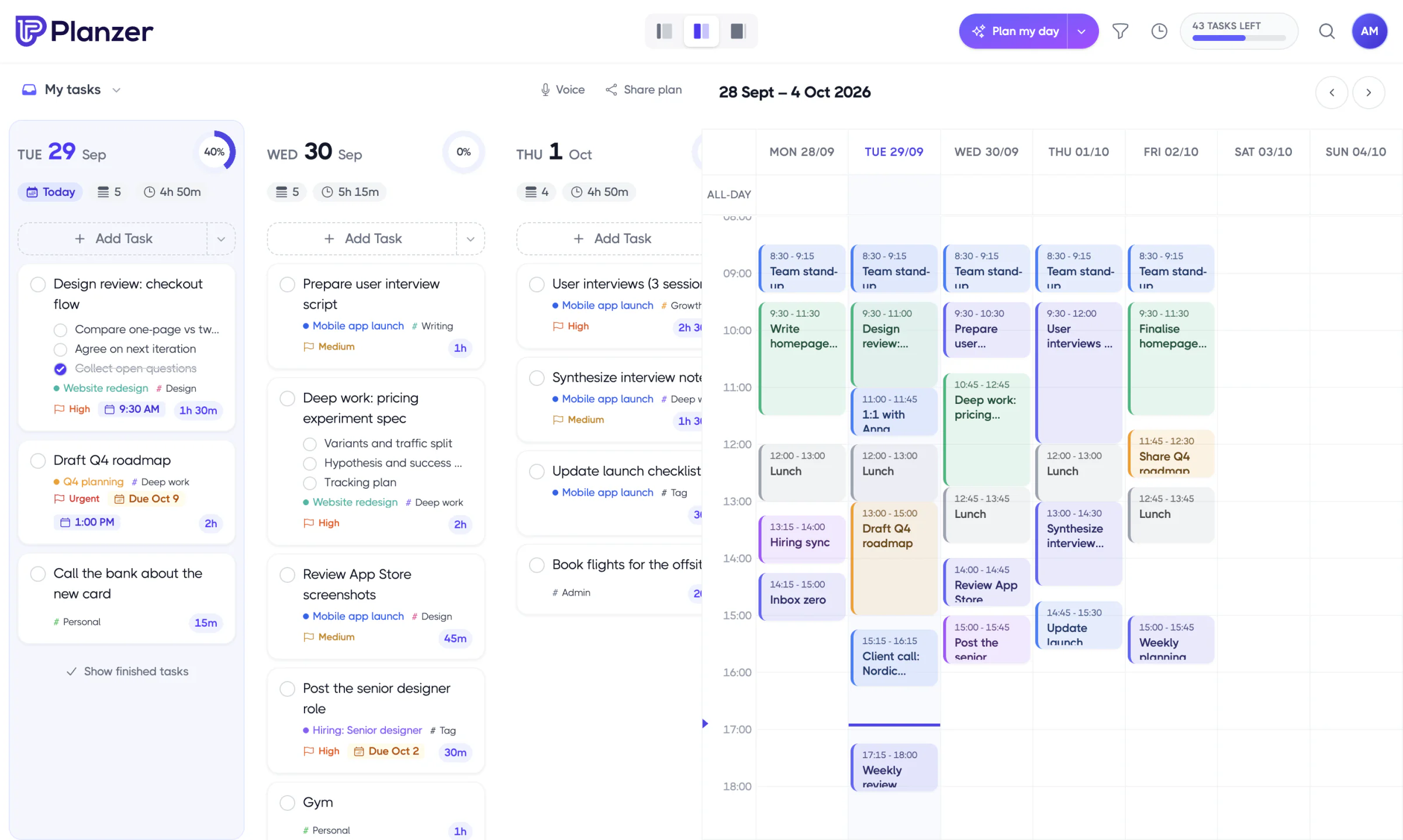
This is the part that feels different from a classic import. Instead of copying hundreds of tasks at once, you drag a task from the Todoist panel onto a day or straight onto a time slot in the calendar. It becomes a Planzer.io task, and it is grayed out in the Todoist panel so you don’t add it twice.
You can also add a Todoist task through the add-from-integration search if you prefer the keyboard.
A good way to start is to bring over only what you plan to do this week. Old someday tasks can stay in Todoist until you actually need them.
What carries over, and what doesn’t
Be clear on this before you move a lot of tasks:
- Kept: the task title and its description.
- Not kept: the Todoist due date, project, labels, priority and repeat rule.
The day you drop a task on becomes its day in Planzer.io, so the date is set by where you place it. Projects, tags, priorities and repeats are quick to add again in Planzer.io, which we cover in Step 5.
Step 4: Set up completion sync
Open the Automations link in the Todoist panel, or go to Integration settings and choose Todoist. Under Completion automations you’ll find these options:
- Close task in Todoist. When you complete a task in Planzer.io, it is closed in Todoist too. This is off by default, so switch it on if you keep using Todoist.
- Done in Todoist, done in Planzer.io. If you close a task in Todoist, the matching Planzer.io task is completed on the next refresh. This is on by default.
- Tag on import. Pick a tag that is added to every task you bring in from Todoist, so you can always see where a task came from.
With completion sync on, you can keep both apps without double work.
Step 5: Rebuild your projects, tags and repeating tasks
If you are moving over fully, spend ten minutes recreating the structure you relied on in Todoist:
- Projects: click the plus button in the Projects panel of the sidebar. Projects can have milestones, and you can assign tasks to them after you drag them in.
- Tags: create them on the Tags page. Many Todoist labels map well to tags like “calls”, “deep work” or “errands”.
- Repeating tasks: open a task’s Repeat menu and choose every day, every weekday, every week, every two weeks, every month or every year, or choose Custom… for your own schedule.
- Routines: if you had a daily checklist in Todoist, save it as a routine on the Routines page. A routine adds up to 50 tasks to a day in one go.
Step 6: Plan your first day
Now the fun part. Open Plan my day and walk through it. Pick what you will do today, estimate how long each task takes and drag tasks into open slots between your meetings. If you have never time blocked before, our time blocking guide explains the method.
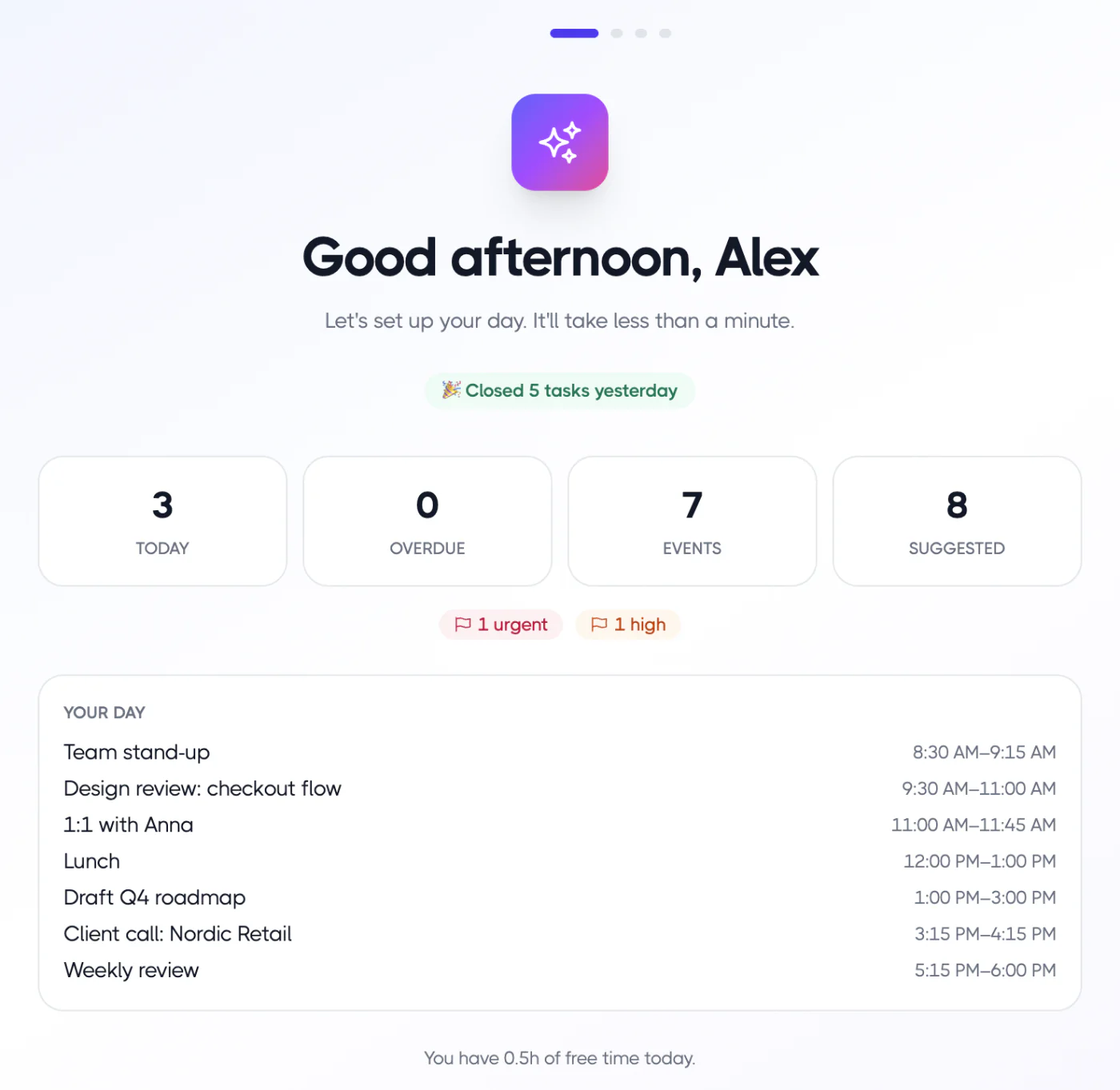
At the end of the day, use the shutdown to review what got done and move the rest forward.
Keep a backup of your Todoist data
Before you stop using Todoist, export a backup for your own records. In Todoist, open a project, choose the three-dot menu, then Manage data and Export as CSV. Keep the files somewhere safe. Planzer.io can’t import CSV files, so the backup is for reference only.
What about the free plan?
You can do everything in this guide on the free plan, which includes 100 tasks. Tasks you bring in from Todoist count toward that limit. If you plan more than that, Pro costs $10 a month, or $8 a month billed yearly, and removes the limit.
Frequently asked questions
Can I import all my Todoist tasks at once?
No. Planzer.io brings in Todoist tasks one at a time, by dragging them from the sidebar. Most people find that this is a good filter: you plan what matters now instead of copying an old backlog.
Do Todoist due dates come over to Planzer.io?
No. Only the title and description are copied. The day you drop the task on becomes its day in Planzer.io.
Can I keep using Todoist on my phone?
Yes. Keep capturing in Todoist, and turn on Close task in Todoist so tasks you finish in Planzer.io close there too.
Is Planzer.io a Todoist replacement?
It can be, but it is mostly a daily planner. If you want to compare the two in detail, read our Todoist alternative page or see how the Todoist integration works.