
Google Tasks and Google Calendar are a simple, free combination. The trouble starts when your task list grows and your calendar fills up. It gets hard to see what fits into your day. Planzer.io keeps both Google apps and adds a daily planner on top. This guide shows you how to switch.
The good news: you don’t have to give anything up. Your calendar stays in Google, and your tasks can stay in Google Tasks too.
Step 1: Sign in and connect Google Calendar
Create a Planzer.io account. You can sign in with your Google account. Then open Calendar settings and connect Google Calendar. All your calendars and meetings appear in Planzer.io straight away.
If you also use a work calendar in Outlook or a personal calendar in iCloud, connect those as well. You can add as many calendar accounts as you need.
Turn on Use for planning tasks for the calendar where Planzer.io should save your time blocks. When you plan a task into a time slot, it is written to that Google calendar as an event, so you’ll see it on any device.
Step 2: Connect Google Tasks
Open Integrations and choose Google Tasks. A Google Tasks panel appears in the sidebar. It shows one list at a time, so use the list picker to switch between your lists. Only open tasks are shown.
Step 3: Drag your tasks into your day
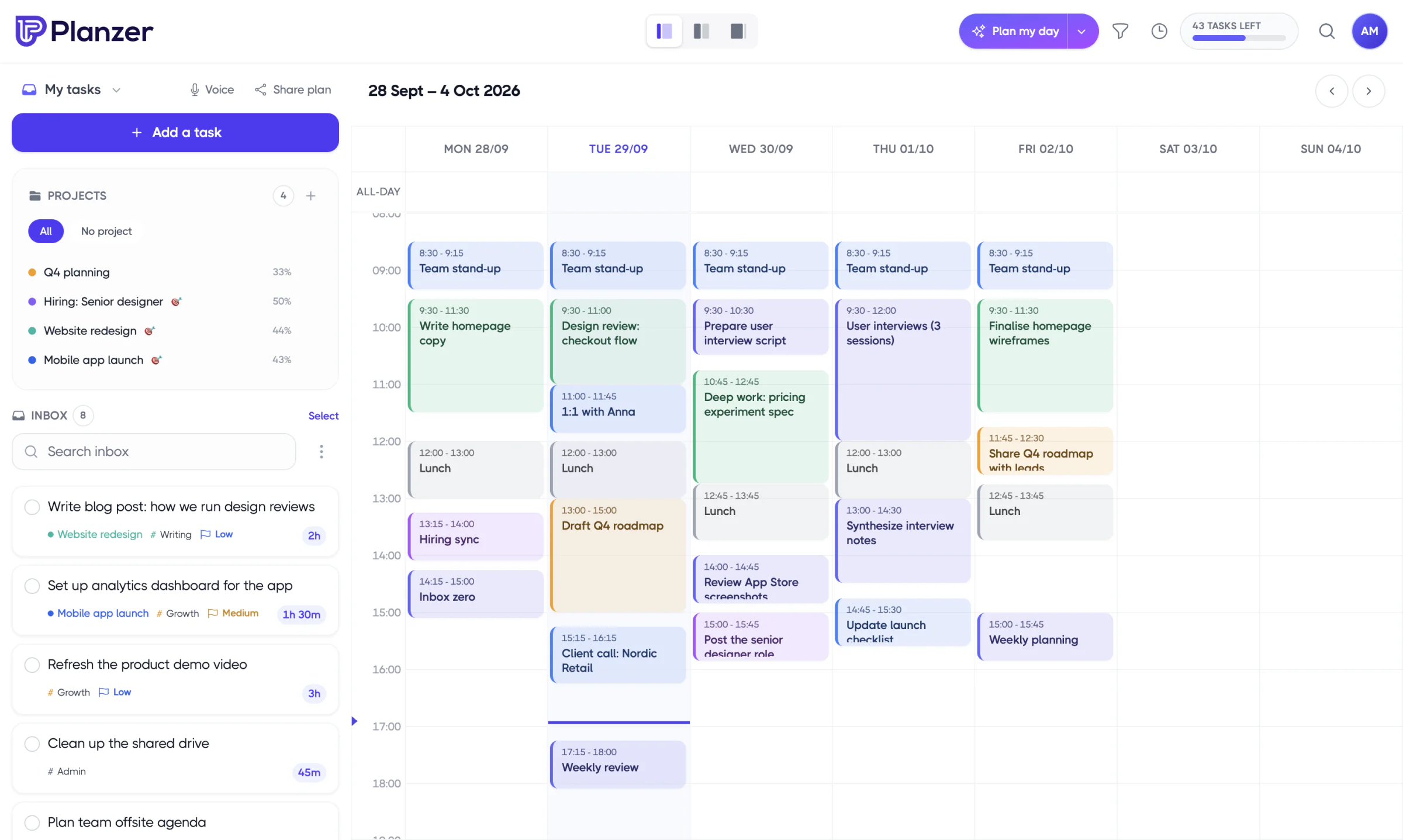
Drag a task from the Google Tasks panel onto a day, or straight onto a time slot in the calendar. Here is what comes with it:
- Title and notes: the notes become the task description.
- Due date: the due date becomes the task’s deadline and its default day.
Once a task is in Planzer.io, it is grayed out in the panel so you don’t add it twice.
Step 4: Keep both apps in sync
Open Integration settings and choose Google Tasks.
- Mark task complete in Google Tasks: turn this on and tasks you finish in Planzer.io are completed in Google Tasks too. It’s off by default.
- Done in Google Tasks, done in Planzer.io: if you complete a task in Google Tasks, for example from your phone or Gmail’s side panel, the Planzer.io task is completed on the next refresh. This is on by default.
You can also pick a tag that is added to every task you bring in from Google Tasks.
Step 5: Set up repeating tasks
Repeat rules from Google Tasks are not copied. Open a task’s Repeat menu in Planzer.io and choose every day, every weekday, every week, every two weeks, every month or every year.
For a fixed morning or evening checklist, create a routine under Templates. A routine adds a set of tasks to a day in one go.
Step 6: Plan your day
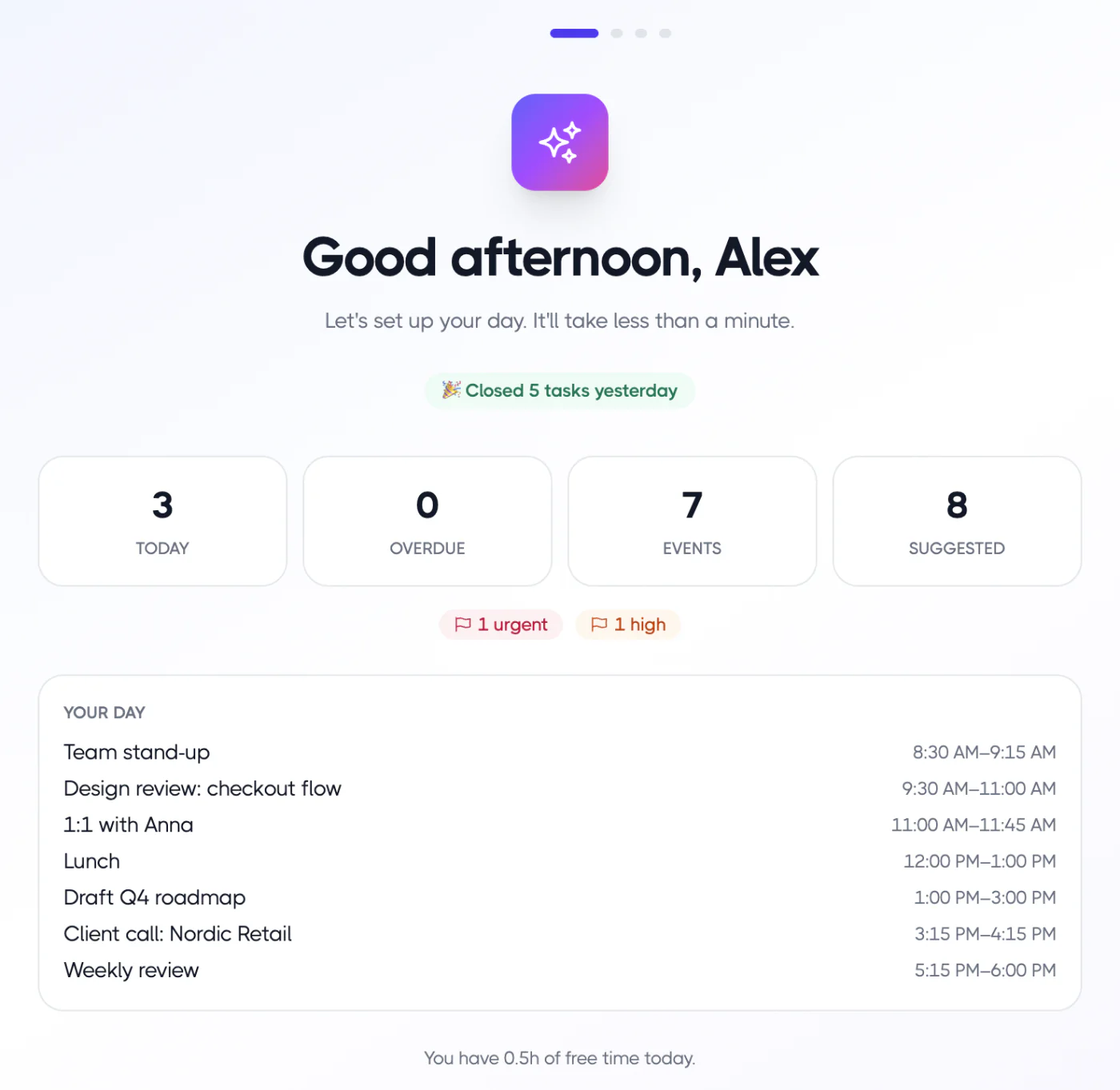
Open Plan my day. Pick today’s tasks, add estimates and drag them into free slots between your meetings. Your plan is saved to Google Calendar, so you can check it on your phone even outside Planzer.io.
What Planzer.io adds to Google Tasks
- Time blocking next to your Google Calendar events.
- Priorities, tags, projects and estimates that Google Tasks doesn’t have.
- A focus timer and time tracking to see where your time goes.
- Apps for every device: web, iPhone, iPad, Apple Watch, Android, Mac, Windows and Linux.
Learn more about the Google Tasks integration and the Google Calendar integration.
Keep a backup
If you want a copy of your Google Tasks data, you can download it with Google Takeout. Planzer.io can’t import that file, but it’s useful as an archive.
Frequently asked questions
Do I have to stop using Google Tasks?
No. Many people keep adding tasks in Google Tasks and plan them in Planzer.io. Completion sync keeps both apps up to date.
Are due dates kept?
Yes. The Google Tasks due date becomes the deadline and default day in Planzer.io.
Is Planzer.io free with Google Calendar?
Yes. The free plan includes 100 tasks and works with Google Calendar and Google Tasks. Pro removes the limit and costs $10 a month, or $8 a month billed yearly.