Microsoft is retiring Microsoft To Do. The apps stop on June 30, 2027, and Microsoft won’t move your tasks to another app for you. If you rely on To Do for your daily lists, now is a good time to decide where your tasks go next.
This guide explains what is changing, what your options are, and how to move all your open To Do tasks to Planzer.io in a few minutes.
What is happening to Microsoft To Do
In November 2026, Microsoft announced on its support site that Microsoft To Do is retiring. Here is what that means:
- The apps retire on June 30, 2027. That covers To Do on the web, Windows, Mac, iPhone and Android, for both personal and work accounts.
- Work and school accounts move to Planner. Microsoft points them to the new My tasks view in Planner, which starts rolling out in December 2026. Planner works in the browser and in Teams. There is no Planner app for Mac or Windows.
- Personal accounts get no replacement. Planner isn’t available for personal Microsoft accounts, including Microsoft 365 Personal and Family. Microsoft’s advice is to pick another task app.
- Your tasks don’t move by themselves. Existing To Do tasks and lists are not migrated to Planner. Microsoft says it will offer an export before the apps retire, but it hasn’t said what the export includes, and an export doesn’t mean another app can import it.
- Classic Outlook tasks keep working. The Tasks feature in classic Outlook is not part of the retirement.
Your options
You have three realistic choices:
- Planner, if you have a work or school account and your team already uses it. You’ll need to recreate your tasks by hand.
- Wait for Microsoft’s export. It is coming before June 2027, but there is no date yet, and you may still have to retype your tasks somewhere else.
- Switch to another task app now, while To Do still works and you can move your tasks over automatically.
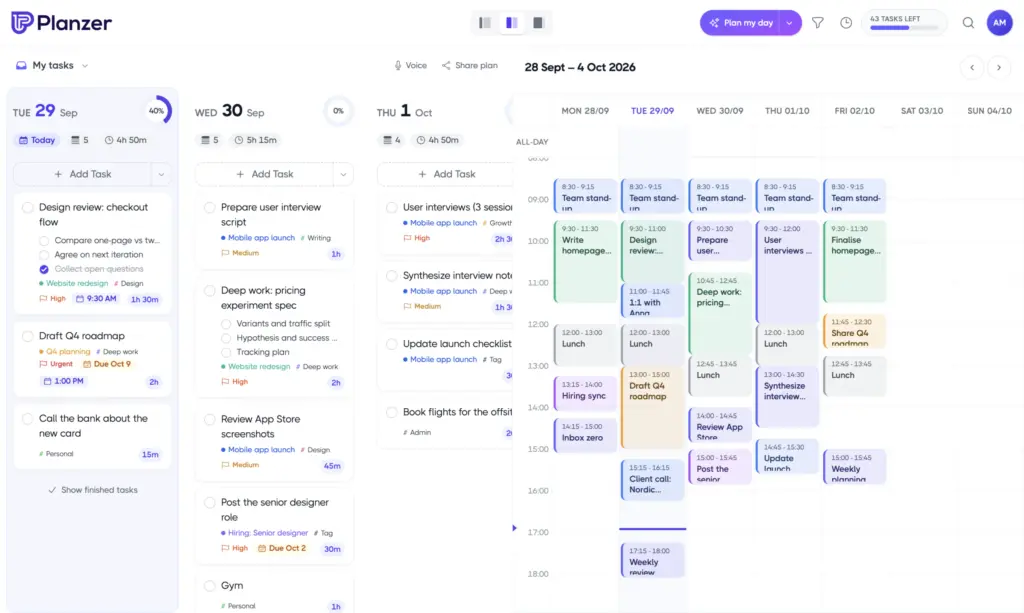
If you choose the last option, Planzer.io can copy your To Do tasks for you. It is a daily planner: your tasks sit next to your Outlook, Google or iCloud calendar, and you plan them into your day with time blocking.
How to move your To Do tasks to Planzer.io
Step 1: Create a free account
Sign up at app.planzer.io. No credit card needed. You can use the web app or the apps for Mac, Windows, Linux, iPhone and Android.
Step 2: Connect Microsoft To Do
Open Move from Microsoft To Do and choose Connect Microsoft To Do. Sign in with the Microsoft account you use for To Do and allow access. Planzer.io then reads your lists.
Step 3: Pick your lists and move
You see every To Do list with its number of open tasks. All lists are picked, except Flagged email, which you can add if you want. Choose Move, and your tasks are copied over.
Here is what carries over:
- Lists become projects with the same name. Tasks from your built-in Tasks list go to your Planzer.io inbox.
- Titles and notes are kept.
- Due dates become deadlines. Tasks due today or later are also planned on that day.
- Steps become subtasks, and steps you already ticked stay ticked.
- Important tasks get high priority.
- Links, like the email behind a flagged email task, are kept in the task’s notes.
And what doesn’t:
- Completed tasks stay in To Do.
- Repeats and reminders aren’t copied. Planzer.io tells you how many repeating tasks you moved, so you can set their repeat again in a few clicks.
- Attachments aren’t copied.
Nothing is changed or deleted in Microsoft To Do. If you keep using To Do for a while, run the move again later: tasks you already moved are skipped, and only new ones are added.
Step 4: Plan your first day
Connect your calendar in Calendar settings: Outlook, Google or iCloud. Then open Plan my day, pick what you want to do today and drag tasks into the free time between your meetings. Our time blocking guide explains the method if it is new to you.
Free plan or Pro?
The free plan holds up to 100 tasks. If you have more open tasks in To Do, the move stops at the limit and tells you how many didn’t fit. Pro has no task limit and costs $8/month billed yearly or $10 monthly. Upgrade and run the move again to bring over the rest: tasks you already moved are skipped.
Frequently asked questions
Will my To Do tasks be deleted on June 30, 2027?
Microsoft says the retirement of the apps doesn’t by itself schedule your data for deletion, and it hasn’t announced a deletion date. After June 30, 2027, you can’t open or manage the tasks in the To Do apps, so move them before then.
Can I keep using To Do until it retires?
Yes. To Do keeps working until June 30, 2027. You can move your tasks now and run the move again later to pick up new ones.
Does Planzer.io work with Outlook?
Yes. You can connect Outlook Calendar and plan tasks between your meetings, and turn Outlook emails into tasks.
Is Planzer.io a good Microsoft To Do alternative?
If you only want a simple list, many apps will do. If you want to see your tasks next to your calendar and plan when to do them, Planzer.io is built for that. See the full Planzer.io vs Microsoft To Do comparison.
Ready to move? Move your To Do tasks to Planzer.io. It takes a few minutes.