


If you like Sunsama’s calm, guided way of planning your day but want a lower price or apps on more devices, Planzer.io will feel familiar. Both pull tasks from your other tools, place them next to your calendar and walk you through a daily plan and shutdown. This guide shows how to move your setup from Sunsama to Planzer.io step by step.
How Sunsama and Planzer.io compare
The core idea is the same in both apps: tasks live in many tools, and your planner brings them into one daily view next to your calendar. Most of the tools Sunsama connects to are also Planzer.io integrations, including Asana, ClickUp, GitHub, Jira, Linear, monday.com, Notion, Todoist and Trello, plus Google, Outlook and iCloud calendars.
Planzer.io runs on the web, iPhone, iPad, Apple Watch, Android, Mac, Windows and Linux, and has a free plan with 100 tasks. Pro is $10 a month, or $8 a month billed yearly. For a full comparison, see Planzer.io vs Sunsama.
Step 1: Export your Sunsama data as a backup
Before you switch, save a copy of your data. In Sunsama, go to Settings, then Account Management, and choose Export my data. You can download it as CSV or JSON.
Planzer.io can’t import this file, so think of it as your archive. It is handy for looking up old notes or tasks while you settle in.
Step 2: Connect the same calendars
In Planzer.io, open Calendar settings and connect the calendars you used in Sunsama: Google Calendar, Outlook or iCloud. Your meetings, and any time blocks Sunsama wrote to your calendar, show up right away because they live in your calendar, not in Sunsama.
Turn on Use for planning tasks for the calendar where Planzer.io should place new time blocks.
Step 3: Connect the tools Sunsama pulled from
Open Integrations and connect the same tools. Each one gets a panel in the sidebar that lists your tasks, cards or issues, just like Sunsama’s integration panels. Drag an item onto a day or a time slot to plan it.
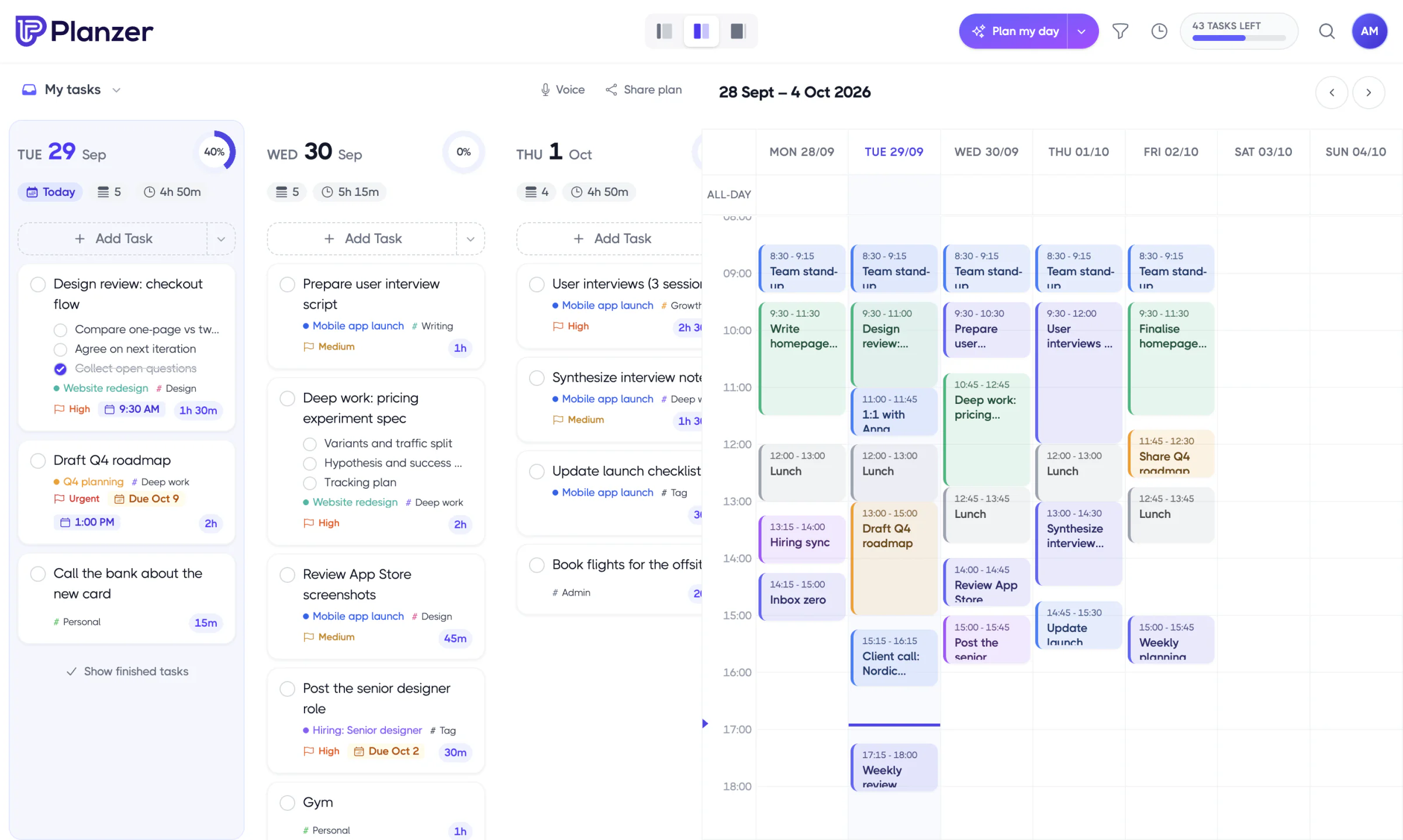
Tasks you bring in keep their title and description. For Jira, Linear, GitHub, Google Tasks and Microsoft To Do, the due date comes along as a deadline too.
Step 4: Set up what happens when you finish a task
This is where you get Sunsama’s “done everywhere” feeling. Open Integration settings and choose a tool. Under Completion automations, pick what should happen in that tool when you complete a task in Planzer.io. Here are some examples:
- Asana: mark the task complete, or get a prompt to pick a section.
- Trello: move the card to the next list or a list you choose, or archive it.
- ClickUp and monday.com: get a prompt to pick the new status.
- Jira, Linear, GitHub, Todoist: move the issue to Done, close it or complete it.
It works the other way too. When you finish something in the original tool, the Planzer.io task is completed on the next refresh. That is on by default.
Step 5: Rebuild your channels as tags
Sunsama uses channels to group work. In Planzer.io, tags do that job. Create tags like “Marketing”, “Client A” or “Admin” on the Tags page.
You can also set an import tag per integration, so every Jira issue gets a “Jira” tag and every Asana task gets a “Client A” tag. That recreates Sunsama’s “channel by source” setup with no manual work.
Step 6: Recreate your daily rituals
Sunsama’s daily planning and shutdown rituals have a direct match in Planzer.io:
- Plan my day walks you through picking today’s tasks, estimating them and fitting them around your meetings.
- Shutdown helps you review what got done and move unfinished tasks to another day.
- Slack: you can get your plan and shutdown as Slack messages and share your plan to a channel, like a stand-up post.
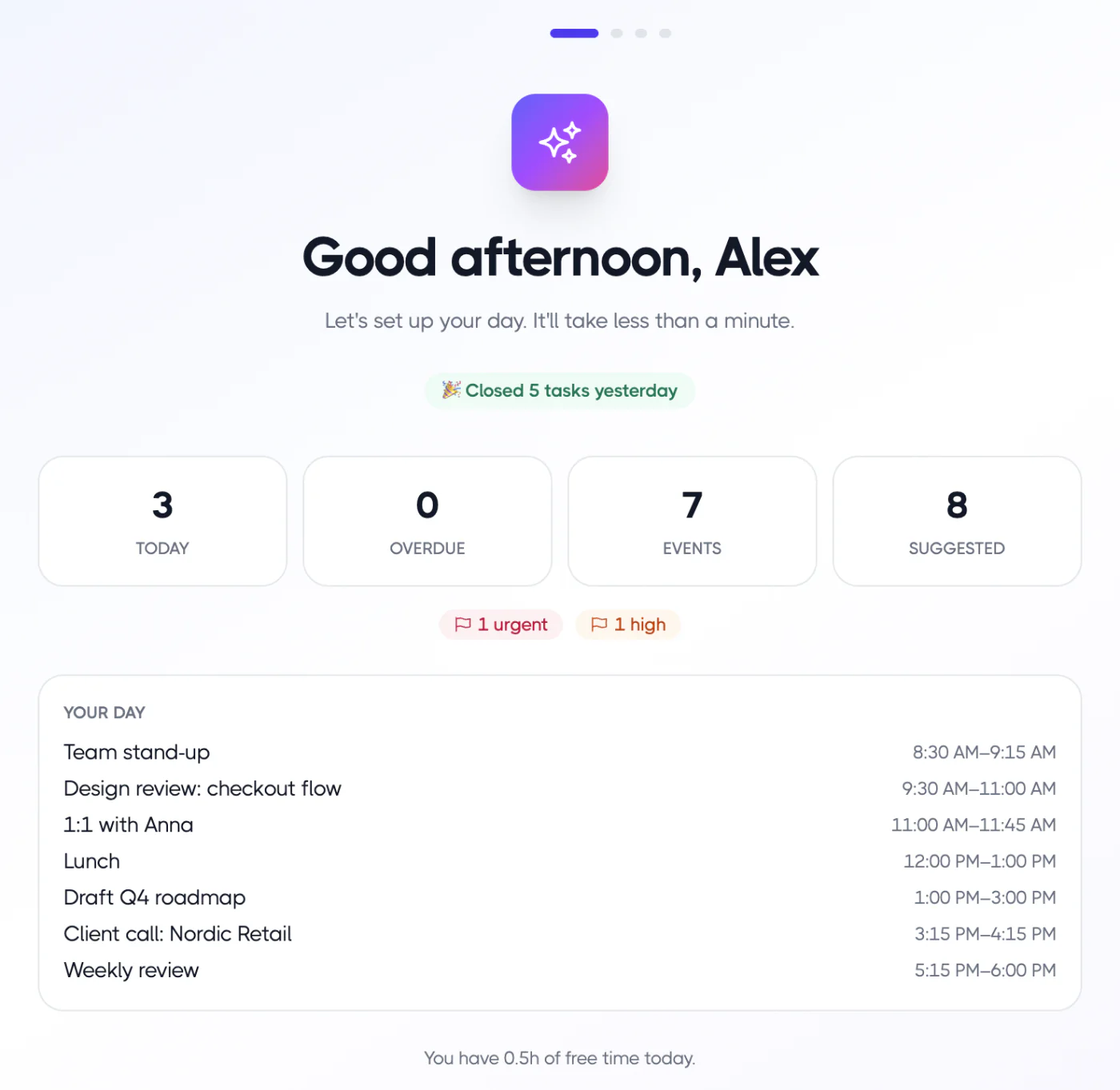
Step 7: Re-add tasks that only lived in Sunsama
Tasks that came from another tool come back through that tool’s integration. Tasks you created directly in Sunsama need to be added again. There are a few quick ways to do it:
- Quick add: type a task like “Write the report tomorrow ~2h” and Planzer.io picks up the date and estimate.
- Voice: say a list out loud and Planzer.io splits it into separate tasks with dates. Works on every plan.
- Routines: if you had a recurring checklist, save it as a routine on the Routines page and add it to a day in one go.
- Repeating tasks: use the Repeat menu for daily, weekday, weekly, every two weeks, monthly or yearly tasks, or choose Custom… for your own schedule.
Frequently asked questions
Can I import my Sunsama export into Planzer.io?
No. Planzer.io doesn’t import CSV or JSON files. Tasks from connected tools come back through the integrations. Tasks that only lived in Sunsama need to be added again.
Will my time blocks move over?
Time blocks that Sunsama wrote to your Google, Outlook or iCloud calendar stay in that calendar, so you’ll see them in Planzer.io as soon as you connect it.
Does Planzer.io have a weekly review?
Yes. You can review your week with time tracking and analytics, and Pro adds an AI summary of your week. See productivity analytics for what you can track.
Is there a free plan?
Yes. The free plan includes 100 tasks, and tasks you bring in from other tools count toward it. Pro removes the limit.