


Motion decides your schedule for you. Some people love that. Others find it stressful when the plan keeps reshuffling, or they want more control over when deep work happens. If you are moving from Motion to Planzer.io, this guide shows you how to bring your calendar and tasks over and how planning feels different.
The big difference: you decide, Planzer.io helps
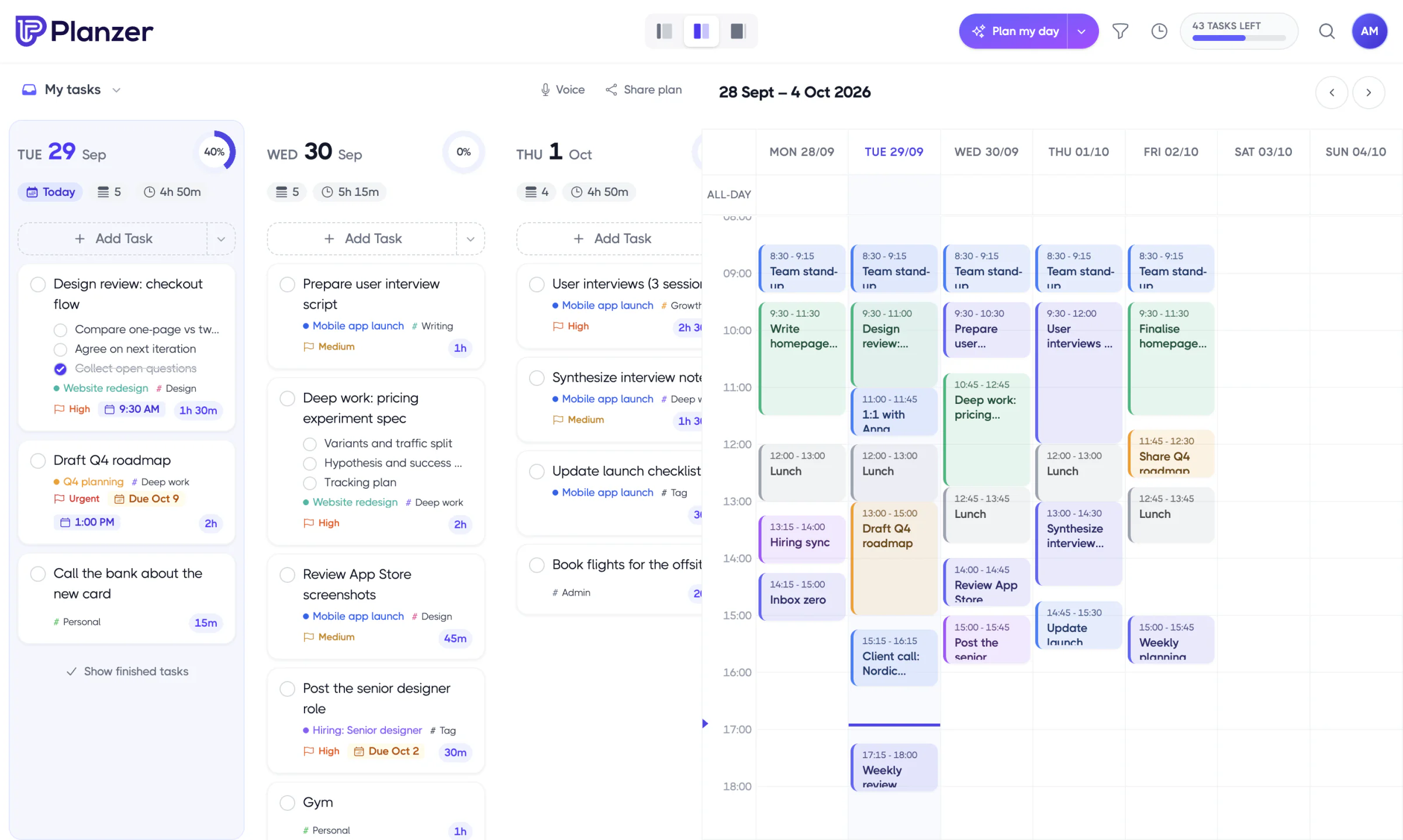
Planzer.io doesn’t auto-schedule your tasks. Instead, you drag tasks onto your calendar yourself, with your meetings in view. That takes a few minutes each morning, and it gives you a plan you chose and understand.
Planzer.io helps you along the way:
- Plan my day walks you through choosing today’s tasks and estimating them.
- AI planning (Pro) can rank your tasks by priority, break a big task into steps and turn typed or spoken notes into tasks.
- Time blocking lets you drag a task onto a time slot, and resizing the block updates the estimate.
If you want to compare the two in detail, see Planzer.io vs Motion.
Step 1: Connect your calendars
Open Calendar settings and connect the Google, Outlook or iCloud calendars you used with Motion. Every meeting appears straight away, because your meetings live in your calendar and not in Motion.
Turn on Use for planning tasks for the calendar where Planzer.io should place your time blocks.
Step 2: Make a copy of your Motion tasks
Motion doesn’t offer a full data export, but you can copy the tasks in a view as a list. Do this for your active projects and keep the list open while you set up Planzer.io. You’ll use it as a checklist in the next steps.
Step 3: Connect the tools your tasks came from
If many of your Motion tasks started in another tool, connect that tool to Planzer.io instead of retyping. Planzer.io works with Todoist, Asana, ClickUp, Trello, Notion, Jira, Linear, GitHub, monday.com, Google Tasks, Microsoft To Do and Outlook email. See all integrations.
Each tool gets a panel in the sidebar. Drag an item onto a day or time slot to plan it. When you finish it in Planzer.io, it can be completed in the original tool too.
Step 4: Recreate your projects and tasks
For tasks you created in Motion itself, rebuild them in Planzer.io:
- Projects: create a project from the Projects panel in the sidebar, and add milestones if you used Motion’s project stages.
- Tasks: use quick add. Typing “Draft proposal tomorrow ~2h #client” sets the date, estimate and tag in one go.
- Voice: say a list of tasks and Planzer.io splits it into separate tasks with dates. Works on every plan.
- Repeating tasks: use the Repeat menu for daily, weekday, weekly, every two weeks, monthly or yearly tasks.
Step 5: Plan your first day by hand
Open Plan my day. Choose the three to five tasks that matter most, check the estimates and drag them into the free gaps between your meetings. Put your hardest task in the time of day when you have the most energy.
If this is new to you, read our time blocking guide for practical tips.
Step 6: Track and adjust
Start the focus timer when you work on a task, so Planzer.io tracks the time you actually spend. After a week, you’ll see where your estimates were off. That feedback makes your next plan more realistic, which is what auto-scheduling promised in the first place.
Who should switch from Motion to Planzer.io?
Planzer.io is a good fit if you:
- want to stay in control of when you do your work
- prefer a calmer plan that doesn’t move around on its own
- want apps on the web, iPhone, iPad, Apple Watch, Android, Mac, Windows and Linux
- want a free plan, or a lower price with Pro at $10 a month, or $8 a month billed yearly
If you rely heavily on automatic rescheduling for a large team, Motion may still suit you better.
Frequently asked questions
Does Planzer.io auto-schedule tasks like Motion?
No. You place tasks on your calendar yourself. Plan my day and AI planning help you decide what to do, and you decide when.
Will my Motion time blocks show up?
Anything Motion wrote to your Google, Outlook or iCloud calendar stays there, so it appears in Planzer.io when you connect the calendar.
Can I import Motion tasks?
No. There is no import from Motion. Copy your active tasks as a list and re-add them, or connect the tools they originally came from.