Yes, you can time block Microsoft To Do tasks on your Outlook calendar. In the new Outlook and Outlook on the web, open the My Day pane, switch to the To Do tab and drag a task onto your calendar to book time for it. That covers the basics. For a full daily planning routine with estimates, a clear finish time and unfinished tasks that carry over, you’ll need a few extra habits or a planner that connects the Microsoft To Do Outlook calendar workflow end to end.
This guide covers the native method step by step, its limits, and a practical workflow for planning your day from To Do, Outlook mail and Outlook Calendar together.
Can you time block Microsoft To Do tasks?
Time blocking means giving each task a specific slot on your calendar, so your plan shows exactly when work will happen. If you’re new to it, our guide to time blocking in Outlook Calendar covers the method in more depth.
Microsoft To Do and Outlook are closely connected. To Do tasks show up inside Outlook, flagged emails can appear as tasks, and new Outlook lets you drag a task to the calendar to create a block of time. So the short answer is yes, with some manual steps.
What Microsoft To Do doesn’t do on its own is plan your day for you. It doesn’t show whether your list fits your free time or tell you when you’ll finish. That’s where the workflow below comes in.
Native method: drag tasks into the new Outlook
Microsoft documents this in its help article Drag a task to your calendar with To Do in Outlook. The steps are the same in new Outlook for Windows and Outlook on the web:
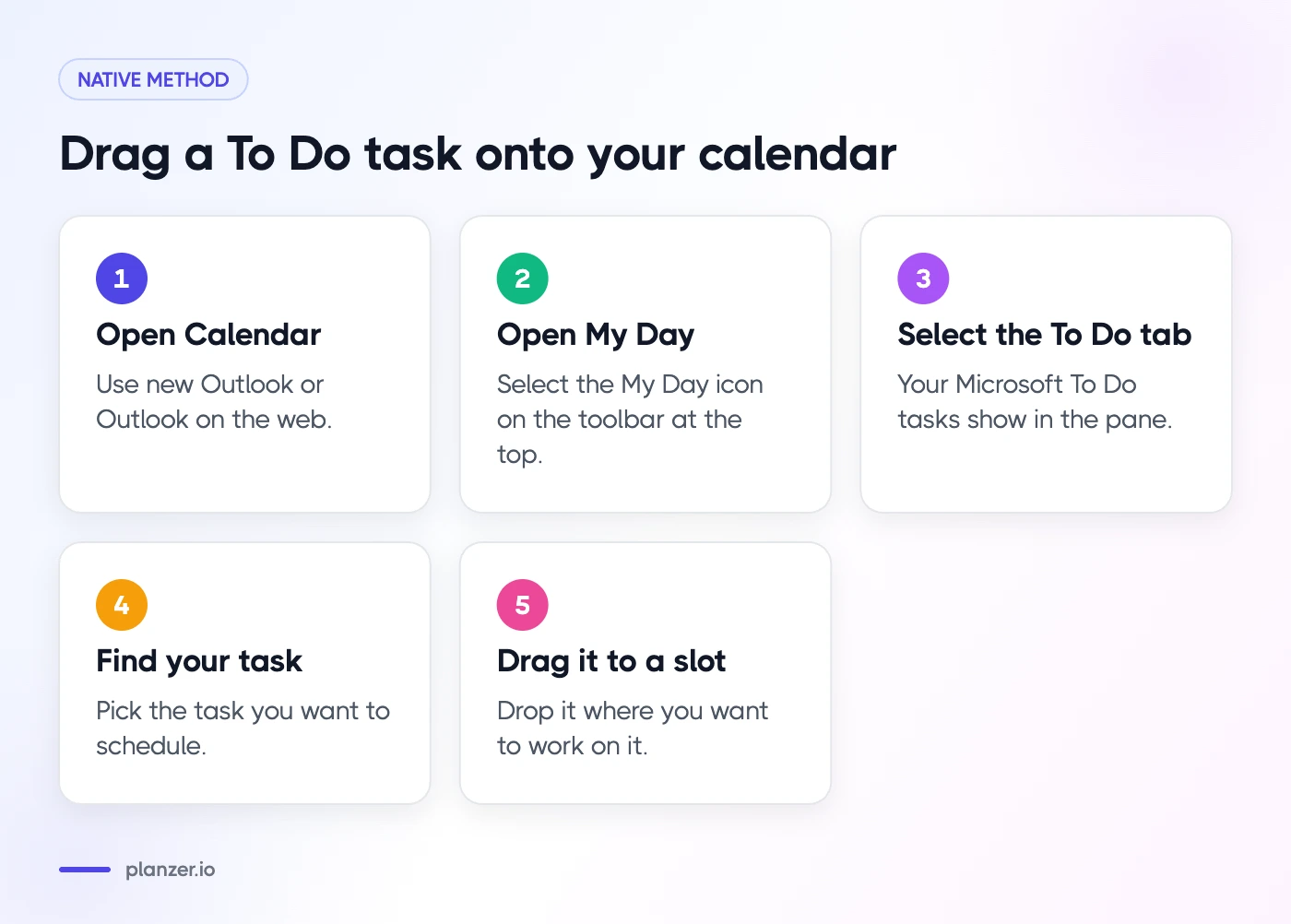
- Open Calendar in new Outlook.
- Select the My Day icon on the toolbar at the top to open the My Day pane.
- Select the To Do tab.
- Find the task you want to schedule.
- Drag it to the time slot on your calendar where you want to work on it.
That creates a calendar event for the task, so the time is visible to you and blocked for others who check your availability.
Turn emails into tasks first
You can also create a task from an email. In Mail, open the My Day pane and drag a message to the To Do tab. Once it’s a task, you can drag it onto the calendar like any other.
Another route is flagging. Microsoft To Do can show flagged emails from Outlook as tasks in a dedicated “Flagged email” list, as described in Using Microsoft To Do with flagged email from Outlook. That feature works with accounts hosted by Microsoft, and only for emails flagged in your primary mailbox.
A quick routine for the native method
- Morning, 10 minutes: open Calendar, open My Day, check today’s meetings.
- Pick three tasks from To Do that matter most today.
- Drag each one into a gap between meetings, adjusting the length to fit.
- Batch small tasks into one 30-minute block, rather than giving each its own slot.
- End of day: mark completed tasks in To Do and move any unfinished blocks to tomorrow.
Limits of the native method
The drag-and-drop method works, but it’s a starting point rather than a planning system. A few gaps tend to show up once you use it daily:
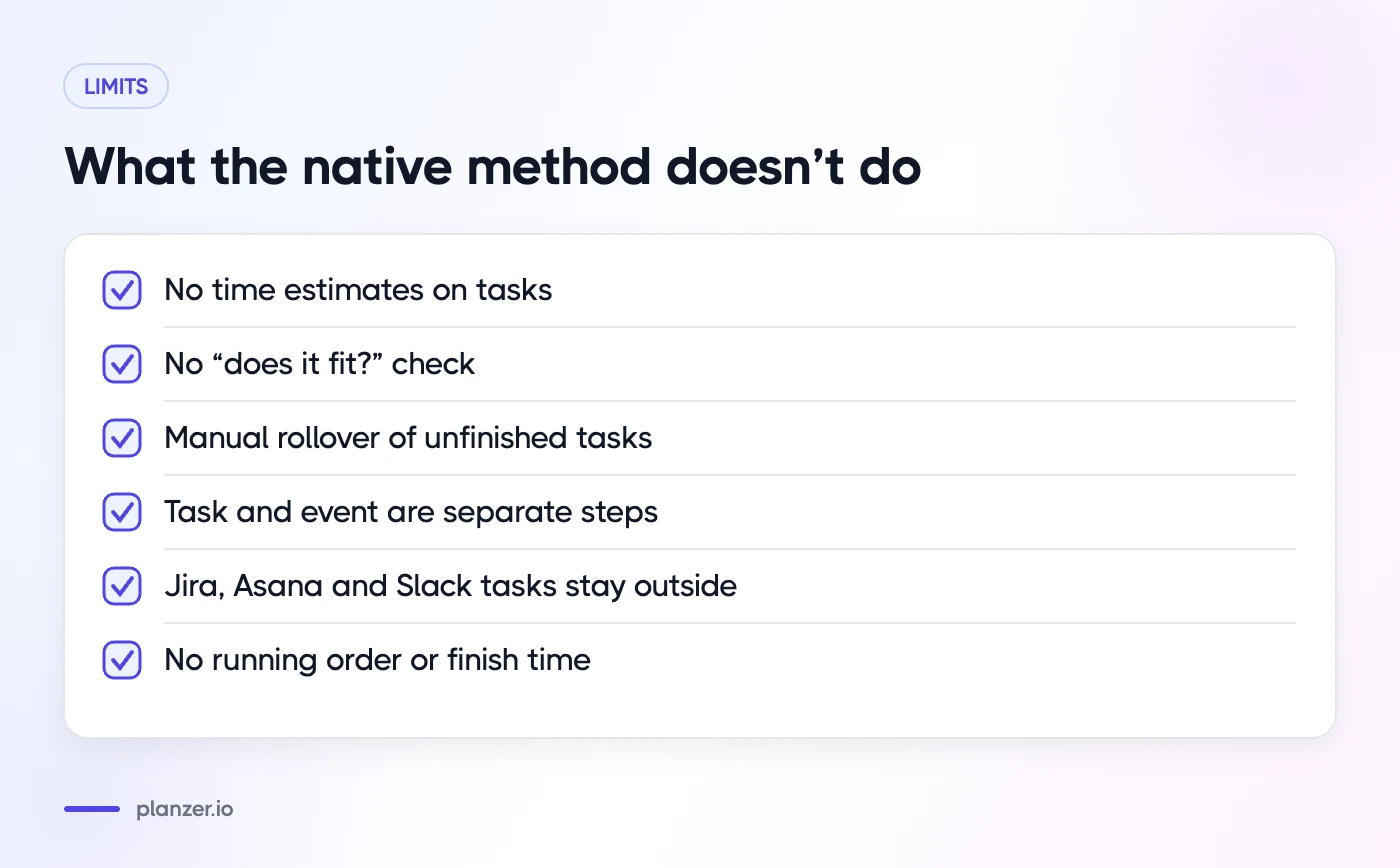
- No time estimates. To Do tasks don’t carry a duration, so you have to guess the length each time you drag one onto the calendar.
- No “does it fit?” check. There’s no view that adds up today’s tasks and compares them to your free time, so it’s easy to overcommit.
- Manual rollover. The My Day list resets every night. Unfinished tasks aren’t lost (they go back to your lists and show up as suggestions), but you have to re-add them and reschedule their blocks yourself.
- Task and event are separate steps. Microsoft’s help article describes dragging a task to book time; it doesn’t describe the event and the task staying in sync. Plan to mark the task done in To Do and tidy up the calendar block yourself.
- Other tools stay outside. If your work also lives in Jira, Asana, Slack or another tool, those tasks don’t appear in the My Day pane.
- No running order. You see blocks on a calendar, but not when you’ll finish if you work down your list.
None of these is a deal-breaker for a light task load. If you schedule a handful of tasks a week, the native method may be all you need.
Step-by-step: plan your day from To Do + Outlook
Here’s a daily workflow that uses Microsoft To Do, Outlook mail and Outlook Calendar together and fills most of the gaps above. It takes about 10–15 minutes each morning.
Step 1: Capture
Clear your inbox into tasks. Flag emails that need action or drag them to the To Do tab in My Day. Add anything else on your mind to To Do. Don’t sort yet.
Step 2: Choose today’s tasks
Pick a short list: one important task, a few medium ones and a few quick ones. If everything feels urgent, our guide on how to prioritize tasks walks through a quick triage. Add your picks to My Day.
Step 3: Estimate
Write a rough estimate next to each task, for example in the task title (“Draft budget memo – 60m”) or the notes. This feels fiddly, but it’s what makes the next step work.
Step 4: Check capacity
Look at your calendar. Add up the free time between meetings, then add up your estimates. If the tasks don’t fit, move the least important ones to another day now.
Step 5: Block it
Drag each task from the To Do tab onto the calendar. Put your most important task in your longest gap and your best energy window. Group quick tasks together.
Step 6: Work the plan
Work through the blocks in order. When something urgent comes in, swap it with a block rather than stacking it on top.
Step 7: Close the day
Mark finished tasks complete in To Do. For anything unfinished, decide when it happens and drag it to a new slot. Add tomorrow’s first task to My Day so the morning starts easy.
Add estimates and roll over unfinished tasks
The two biggest pain points in the native workflow are estimates and rollover. Here are two ways to handle them.
Option 1: Keep it manual
- Add estimates in task titles with a consistent format, like “– 30m.”
- Keep a recurring “Plan tomorrow” task at the end of each day.
- Use My Day suggestions each morning to pull back yesterday’s unfinished tasks.
It works, but it relies on discipline every single day.
Option 2: Use a planner that connects To Do and Outlook
A daily planner can sit on top of Microsoft To Do and Outlook and handle the parts they don’t. The next section shows one way to set that up.
How to do this in Planzer.io
Planzer.io connects with Microsoft To Do, Outlook Calendar and Outlook Mail, so you can plan from all three in one view:
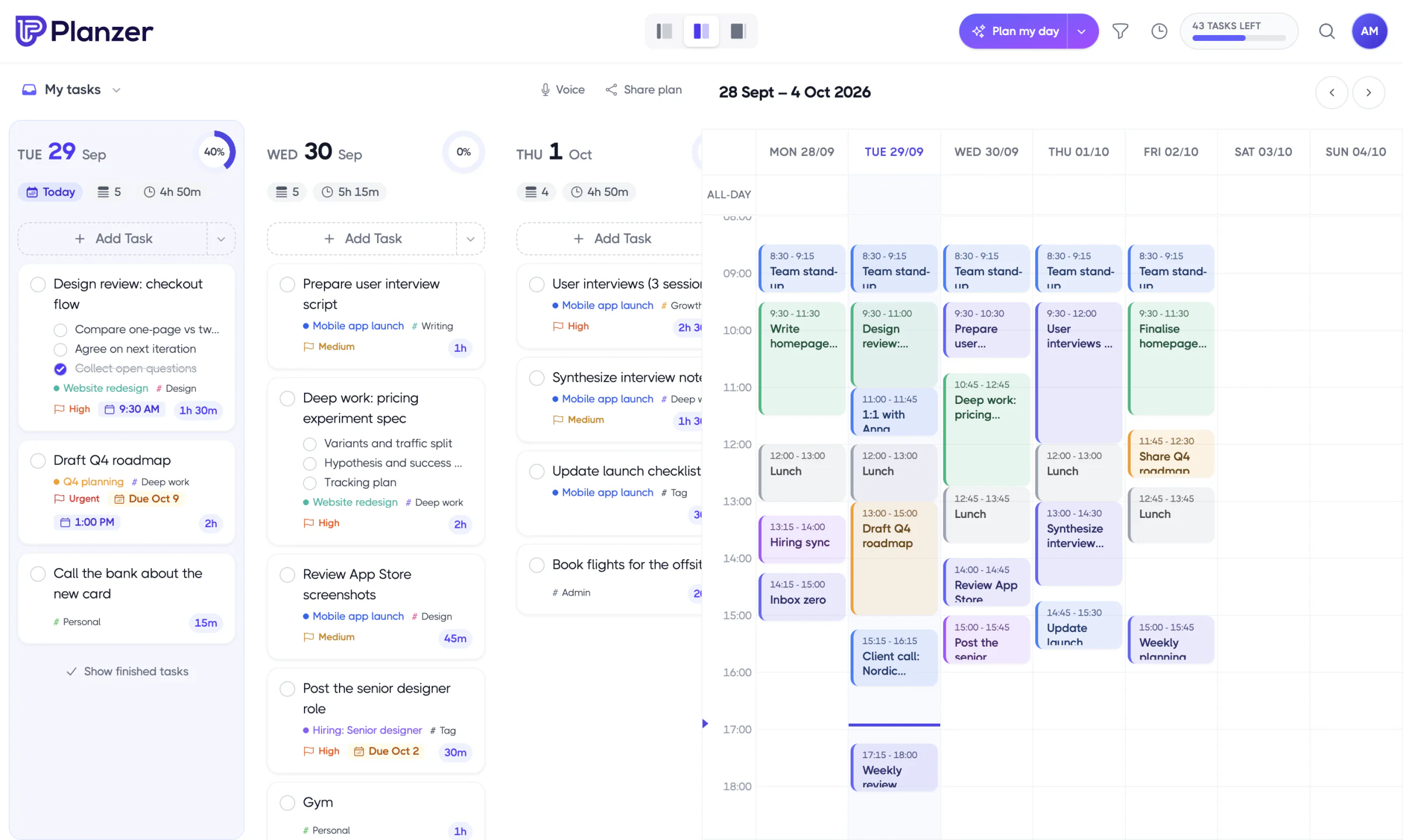
- Integrations sidebar. Your To Do tasks and Outlook emails show in a sidebar. Drag them into today’s list or straight onto your calendar.
- Real calendar events. Dragging a task onto Outlook Calendar creates a real event. Resizing the block updates the task’s estimate.
- Estimates and running order. Add an estimate with quick add (for example “~30m”), and the running order shows when each task starts and ends if you work down the list, around your meetings. A “Done around …” time turns amber if you’ll finish after your shutdown time.
- Rollover with Plan my day. Unfinished tasks roll over to today automatically overnight, and each morning “Plan my day” brings carried-over and backlog tasks into view, then “Plan it for me” fits tasks into free slots between meetings.
- Sync back. Completion can sync back to the source tool, so finishing a task in Planzer.io can update the original.
The free plan includes all 16 integrations, including Jira, Asana and Slack, so tasks from other tools can sit next to your To Do tasks. Note that Planzer.io is a personal planner; it doesn’t offer team collaboration features.
FAQ
Does Microsoft To Do have a calendar view?
Not a full calendar view of its own. The closest built-in option is new Outlook, where the My Day pane shows your To Do tasks next to your calendar, and you can drag tasks onto it to book time.
Do To Do tasks sync to Outlook Calendar?
Your To Do tasks appear in Outlook through the My Day pane, but they don’t become calendar events on their own. A task gets a slot on your calendar when you drag it there, or when a planner that connects to both creates the event for you.
Can I time block flagged emails?
Yes. Flagged emails can appear as tasks in Microsoft To Do’s “Flagged email” list for Microsoft-hosted accounts. You can also drag an email into the To Do tab of the My Day pane to create a task. Either way, once it’s a task, you can drag it onto your Outlook calendar.
Does this work in classic Outlook?
Microsoft’s drag-a-task-to-calendar article is written for new Outlook and Outlook on the web. If you use classic Outlook, check Microsoft’s help for your version, or switch to new Outlook to follow these steps.